

Writing · Document tools
Exporting
When your document is finished, or when you’re sending a draft to your advisor, you download it as a file. The Export button sits in the document’s top bar, next to the version history icon.
Downloading the file
Section titled “Downloading the file”- Make sure no green or red changes are still waiting in the document. If any are left, accept or reject them first, or the export stops. How to handle changes is on the Comments and changes page.
- Click Export.
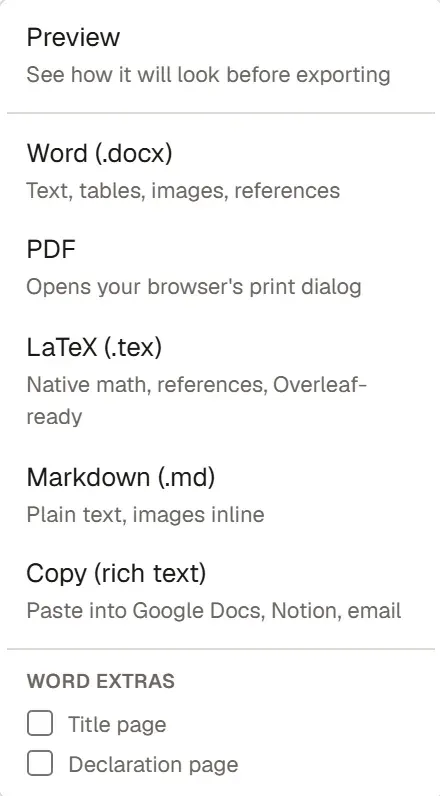
- To see how the file will look first, choose Preview. From the preview window you can carry on with Export PDF.
- Choose a format. Word, LaTeX and Markdown files download right away; for PDF, your browser’s print dialog opens.
Formats
Section titled “Formats”| Option | What you get |
|---|---|
| Word (.docx) | Text, tables, images and the bibliography. The best choice for submitting and for sending to your advisor. |
| Opens your browser’s print dialog; choose Save as PDF as the destination. | |
| LaTeX (.tex) | Math and the bibliography included, ready for Overleaf. |
| Markdown (.md) | Plain text, with images inline. |
| Copy (rich text) | Copies the text with its formatting to the clipboard; you paste it into Google Docs, Notion or an email. |
Word and PDF files come out with the page settings on the Layout tab: margins, font, spacing and page numbers. If you split the document with section breaks, for example to number the front matter in Roman numerals, each section keeps its own page numbering in the Word file; the PDF numbers the whole document in one run. Heading, figure and table numbers carry over to the file just as they appear in the editor. During the export, Grongy rebuilds the bibliography from the sources you cite in the text.
Word extras
Section titled “Word extras”The Word extras at the bottom of the menu are added only to the Word (.docx) file:
- Title page: the document’s title, your name and the date.
- Declaration page: a short page stating that the work is yours, that you have acknowledged your sources, and that you have reviewed any AI assistance and take responsibility for it. The text comes in English, with the signature and date left blank; edit it in Word to match the wording your institution requires.
To put a cover page in the document itself, use Cover page on the Insert tab.
Before you submit
Section titled “Before you submit”- Most institutions ask you to disclose how you used AI. The Export and disclose your AI use step on the Guide tab takes you to the ready-made disclosure draft on the Bibliography tab; the AI-use disclosure page explains the disclosure.
- For a final check, run Submission check on the Review tab. What it looks at is on the Submission readiness page.
Frequently asked questions
Section titled “Frequently asked questions”Some images are missing from the Word file. Images Grongy couldn’t embed in the file are left out, and you see a warning about it. Add the image again in the editor and export the document again.
Can I open and edit my document in Word? Yes, the .docx file opens in Word like any other document. How to bring the edited file back into Grongy is on the Bring in your existing thesis page.