

Writing · Citations and memory
Memory
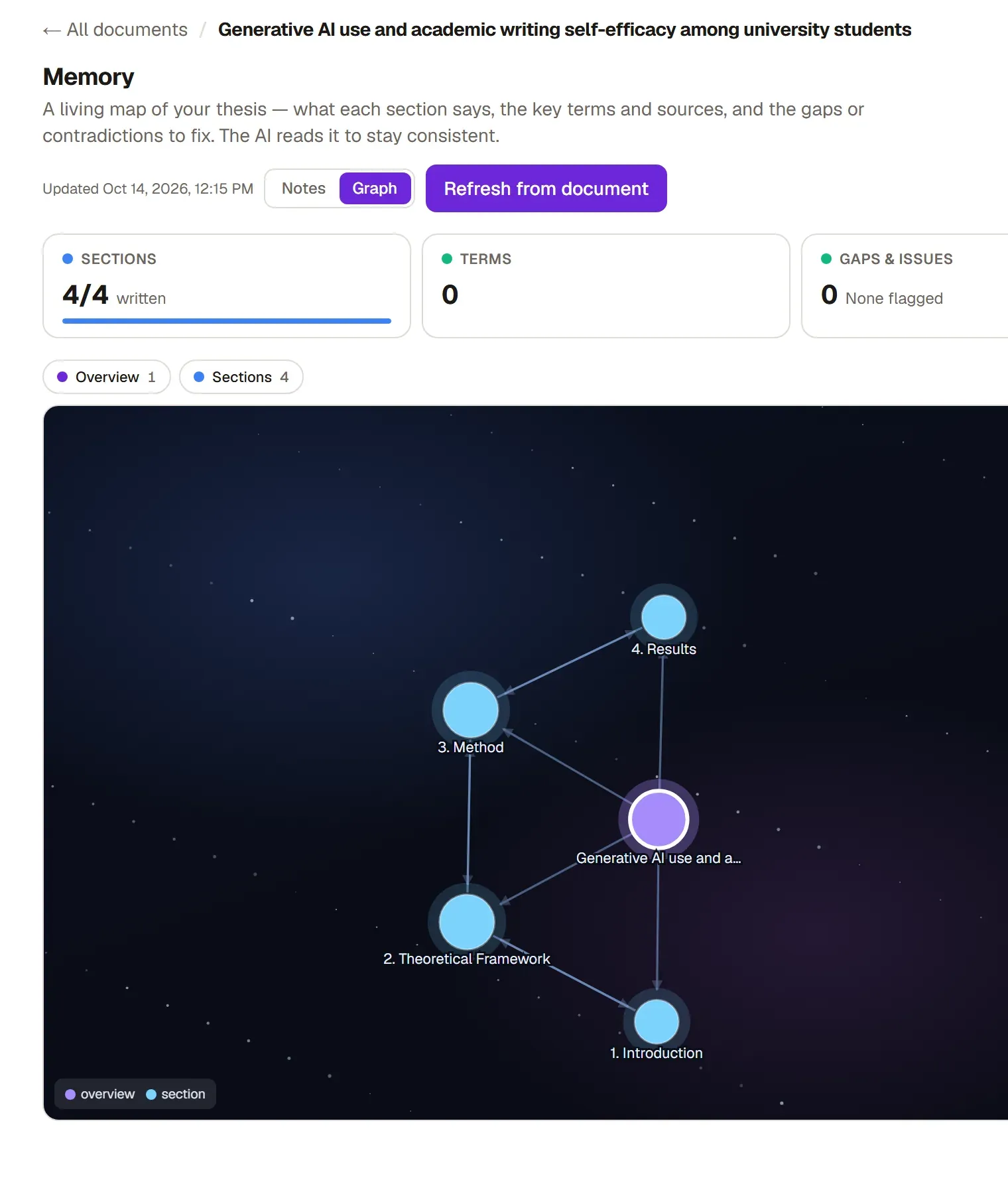
On the Memory tab you see the map Grongy keeps of your document: what each section says, the key terms and sources, and the gaps or contradictions that need fixing. Grongy reads this map when it writes in your document, so that it stays consistent. You can also add rules here that the AI will always follow.
Building the memory
Section titled “Building the memory”- Make sure your document has some text; an empty document has nothing to remember.
- In the left menu, open the Memory tab under Workspace.
- Click Build memory. Grongy reads the document and maps its sections, terms, sources and gaps.
- Grongy also updates the map on its own as you write; to refresh it right away, click Refresh from document. The time of the last update is shown next to the button.
What you see
Section titled “What you see”Four counters sit at the top; click one to open the first note of that kind.
| Counter | What it shows |
|---|---|
| Sections | How many sections are written, e.g. 4/4 written |
| Terms | The number of key terms in the document |
| Gaps & issues | Gaps, contradictions, off-topic or unsupported parts |
| Your notes | The notes you have added |
Two buttons at the top right switch the view:
- In the Notes view, the list of notes is on the left and the content of the note you select is on the right. A section note shows that section’s main claims, its sources and its links.
- Graph draws all the notes as connected dots. Click a dot and a preview appears beside it; you read the whole note with Open note. With the tags at the top (e.g. Overview, Sections) you hide or show one kind of note.
Adding your own note
Section titled “Adding your own note”You add your advisor’s requests, terminology rules or facts about your study as notes. The AI follows your notes above anything it draws from the text.
- In the Notes view, click + Add next to the Your notes heading on the left. The Your notes counter at the top takes you to the same place.
- Write a title (e.g. Terminology) and what the AI should always remember.
- Click Save.
An example note: “Always call it social housing, never council housing.”
Fixing an issue
Section titled “Fixing an issue”On a note under Gaps & issues, click Open in Write: it takes you to the passage’s place in your text, where you fix it.
Frequently asked questions
Section titled “Frequently asked questions”I get a warning that there’s nothing to remember. The document has no text yet. Write a little first, or have Grongy write a paragraph with Section prompts.
Does the memory apply to my other documents too? No, each document has its own memory.