

Writing · Citations and memory
Citations and bibliography
You cite any source in the document’s library from right inside your text. You can also find a paper that isn’t in your library yet in the citation window and add it to the library at the same time. Grongy builds the bibliography itself, from the sources you cite in the text.
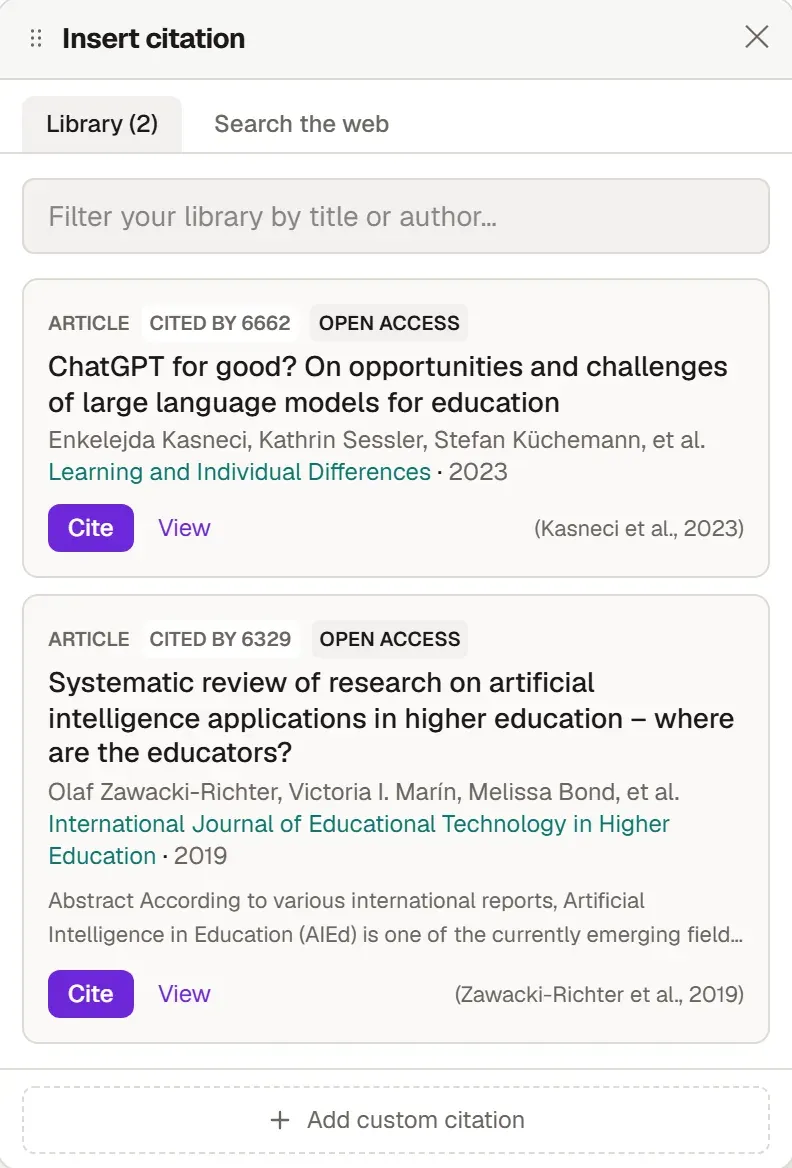
Adding a citation
Section titled “Adding a citation”- In the editor, click where the citation should go.
- Click the Insert Citation (+) button on the right of the ribbon; the same button is also on the References tab. On an empty line, you can also type
/and choose Cite a source. - On the Library tab, find the source by its title or author and click Cite.
- If the source isn’t in your library, switch to the Search the web tab and search for the paper by topic, title or author. Cite here saves the source to the library and puts the citation in your text. To save it without citing, click Save to library.
- For a source that doesn’t turn up in any search, enter its details by hand with Add custom citation and click Create & cite.
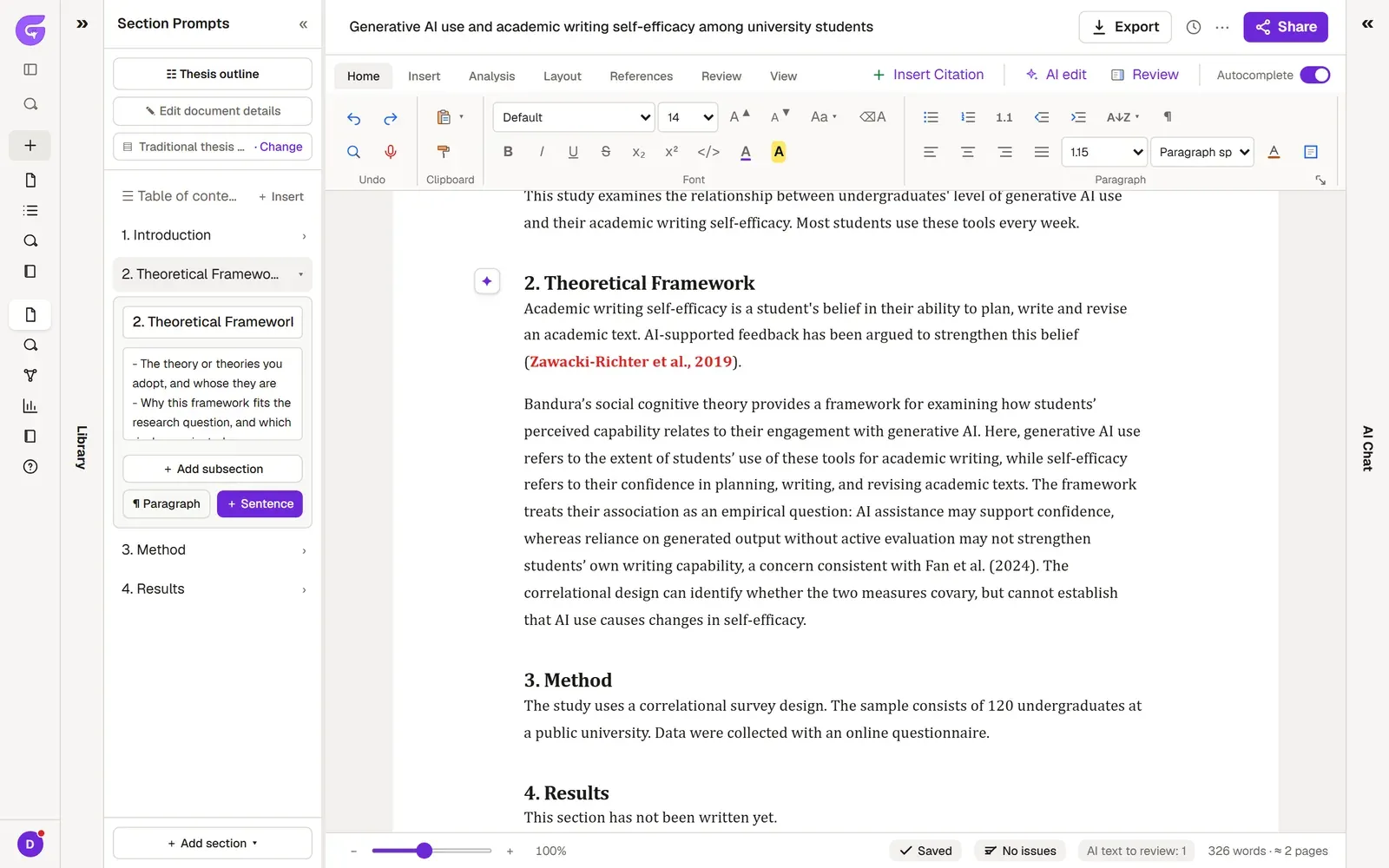
Editing a citation
Section titled “Editing a citation”Click a citation in the text and its source card opens:
- You type the page number in the Page box.
- In author-date styles, you switch between the (Author, Year) and Author (Year) forms. You save the change with Apply.
- Open source opens the source itself; Verify this claim checks whether the source really supports your sentence.
Citation style
Section titled “Citation style”You choose the style from the Style: list in the Citations & Bibliography group on the References tab: APA, MLA, Chicago, Harvard, IEEE, ACS, Turabian, AMA or Vancouver. If a journal wants its own style, you’ll find it in the More citation styles… catalog in the Bibliography menu.
When you change the style, the bibliography switches to it right away, and the citations you add from then on use it too. Citations already in your text, however, aren’t rewritten automatically; go over them before you export.
Bibliography
Section titled “Bibliography”The bibliography sits at the end of the document. In author-date styles (APA, Harvard, Chicago, Turabian) and in MLA, only the sources you cite in the text go into the list; a source that is in your library but never cited doesn’t appear. In numbered styles (IEEE, Vancouver, ACS, AMA), the numbers follow the order of the library, so the list shows the whole library. Grongy updates the list as you add and delete citations. To refresh it by hand, choose Bibliography → Insert or update the bibliography on the References tab.
How Grongy cites
Section titled “How Grongy cites”In the text it writes, Grongy cites only real sources and deletes any citation that doesn’t match a source in your library. If no source supports a claim, it leaves the sentence uncited. Still, check every citation yourself: open the source and read the page you cite. To check all your citations at once, there is Citation check.
Frequently asked questions
Section titled “Frequently asked questions”Can I see the bibliography on its own? Yes, on the Bibliography tab in the left menu. You’ll also find a draft AI-use disclosure there.
Where do I manage my sources? Manage Sources on the References tab opens the document’s library; the Library page covers the library.