

Research
Find papers
You type your topic, and Find papers brings back matching papers and books from scholarly indexes. Every source you add goes into a document’s library, and when Grongy writes, it cites only the sources in that library.
Where to open it
Section titled “Where to open it”- Open Find papers from the menu on the left (grongy.co/app/papers). This page isn’t tied to any document; you choose which document the papers go to after you search.
- In an open document, the Research tab runs the same search and puts what you add straight into that document’s library.
How to search
Section titled “How to search”- Type your topic, a few keywords or a paper’s title into the search box and press Enter.
- If you’re on the Find papers page, use the document picker below the box to choose the document the papers go to. If they should go to a new document, use New document.
- To look at a paper more closely, click its title or the View the source link. The paper’s own page opens in a new tab, and you decide there whether it fits your topic.
- Click Add next to a paper that fits. The button changes to Added and the source goes into the document’s library.
- If the results aren’t enough, click Load more at the bottom of the list.
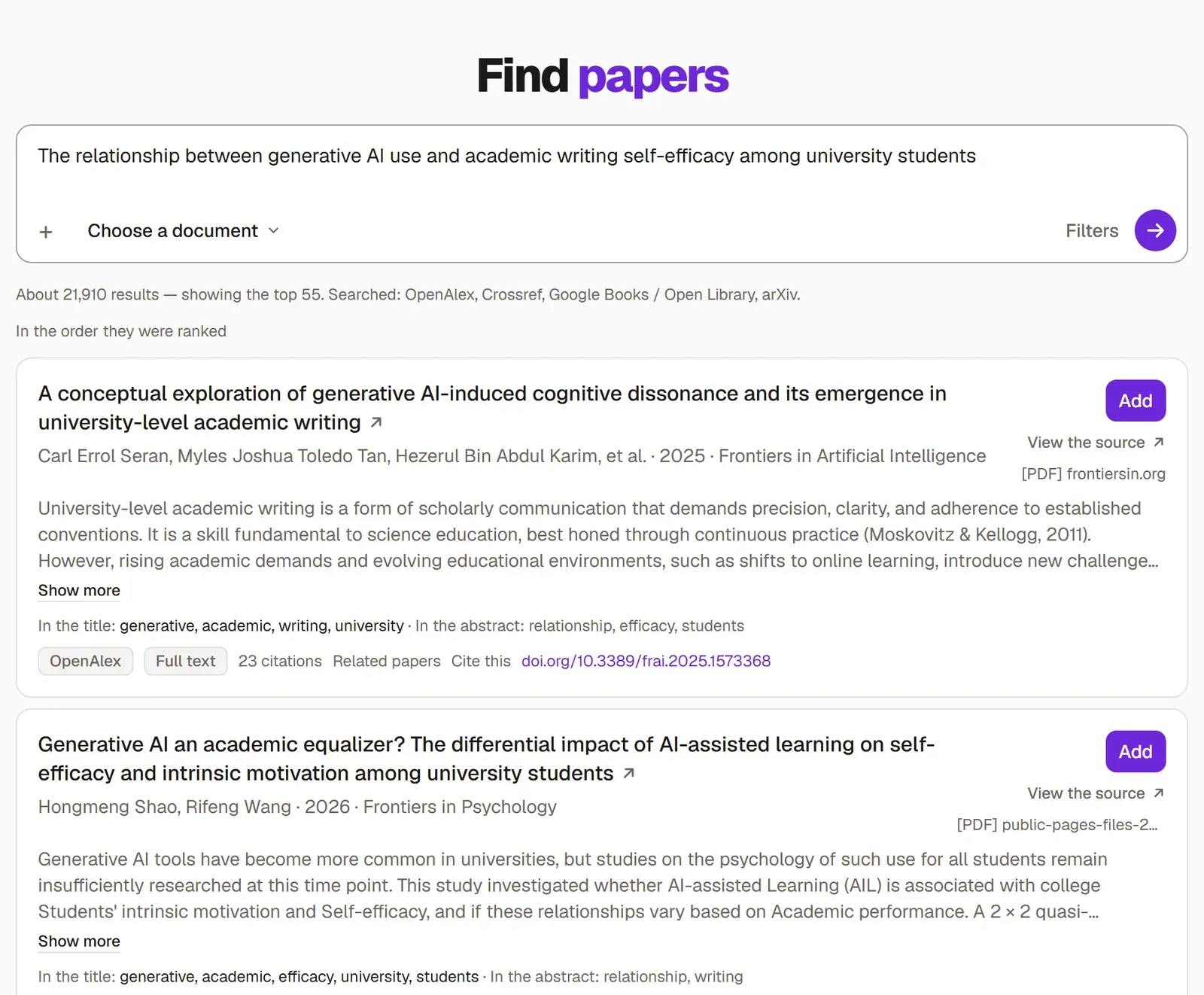
What a result card shows
Section titled “What a result card shows”- Full text means a free, legal copy of the paper exists. When you add the paper, its PDF usually arrives and is read on its own. Some publishers don’t allow automatic downloads; then you add the PDF yourself.
- Record only means Grongy couldn’t fetch the PDF. If you add a paper like this, you download and upload its PDF yourself; if you don’t, it stays a reference you can’t quote from.
- The abstract opens at the sentence with most of your search words, shown in bold, so you can see why a result is on the list. The whole abstract opens inside the card.
- Under the card, Related papers opens similar work, Citing papers the papers that cite this one and Its references the papers it cites. Add takes any of them.
- Cite this copies the paper’s reference to the clipboard in the document’s citation style.
The sort button above the list switches between two states. Readable ones first moves the papers whose full text you can open to the top; the others stay in the list, further down. In the order they were ranked brings back the original ranking.
Filters
Section titled “Filters”To narrow the search, click Filters to the right of the box.
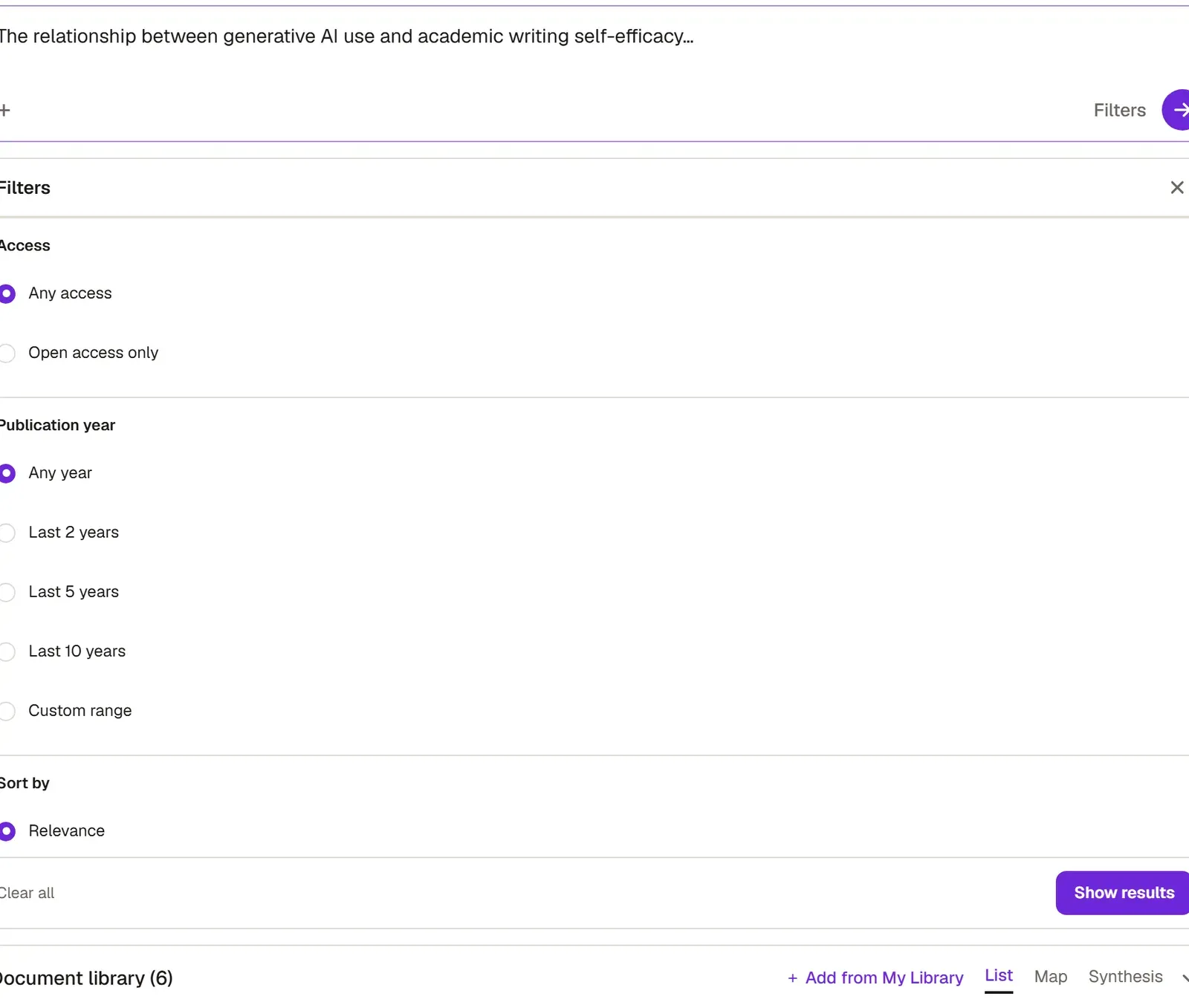
- Access: Any access or Open access only.
- Publication year: Any year, Last 2 years, Last 5 years, Last 10 years or Custom range.
- Sort: Relevance, Newest first, Most cited.
- Document type: Journal article, Review article, Book, Book chapter, Conference paper, Preprint.
- Minimum citation count and language.
- Hide retracted papers (on by default).
When you’ve made your choices, click Show results; Clear all resets every filter. Make these the default for this document saves the year and citation limits to the document. These limits also decide which of your sources Grongy may cite when it writes.
Frequently asked questions
Section titled “Frequently asked questions”Which indexes does it search? OpenAlex, DOAJ, Crossref, Google Books / Open Library and arXiv. For clinical topics it also checks PubMed, and for searches in Turkish, TR Dizin. The indexes it searched are listed above the results. It doesn’t search Google Scholar.
I typed my topic in another language and the results are in English. Grongy translates and expands your topic for English-language indexes, and says so below the box. When a paper’s language differs from your writing language, its card shows the language’s name. How to translate the title and abstract into your own language is on the Source translation page.
Where do I see the sources I added? Below the search box, in the document’s library. How to organize them is on the Library page.