

Review · Citation and language checks
Live proofreading and readability
As you write, live proofreading reads your text and puts a wavy line under problem phrases. You click the line, see the suggestion and apply it if you want.
Turning it on and off
Section titled “Turning it on and off”Switch to the Review tab on the ribbon; the Check switch sits on the right. While the switch is on, live proofreading runs; turn it off and every line disappears. The switch starts out on, and this browser remembers your choice.
When you turn the switch on, Grongy checks the document once, starting from the top. After that, whenever you pause typing, it checks the paragraph where the cursor is again.
What the lines mean
Section titled “What the lines mean”- A red wavy line: a Spelling, Grammar or Punctuation error.
- A blue wavy line: a Clarity, Concision or Word choice suggestion.
Fixing a problem
Section titled “Fixing a problem”- Click the underlined phrase.
- The small box that opens shows the kind of problem, the original phrase struck through and the suggested version.
- Click Apply to accept the suggestion, or Dismiss if you don’t want it.
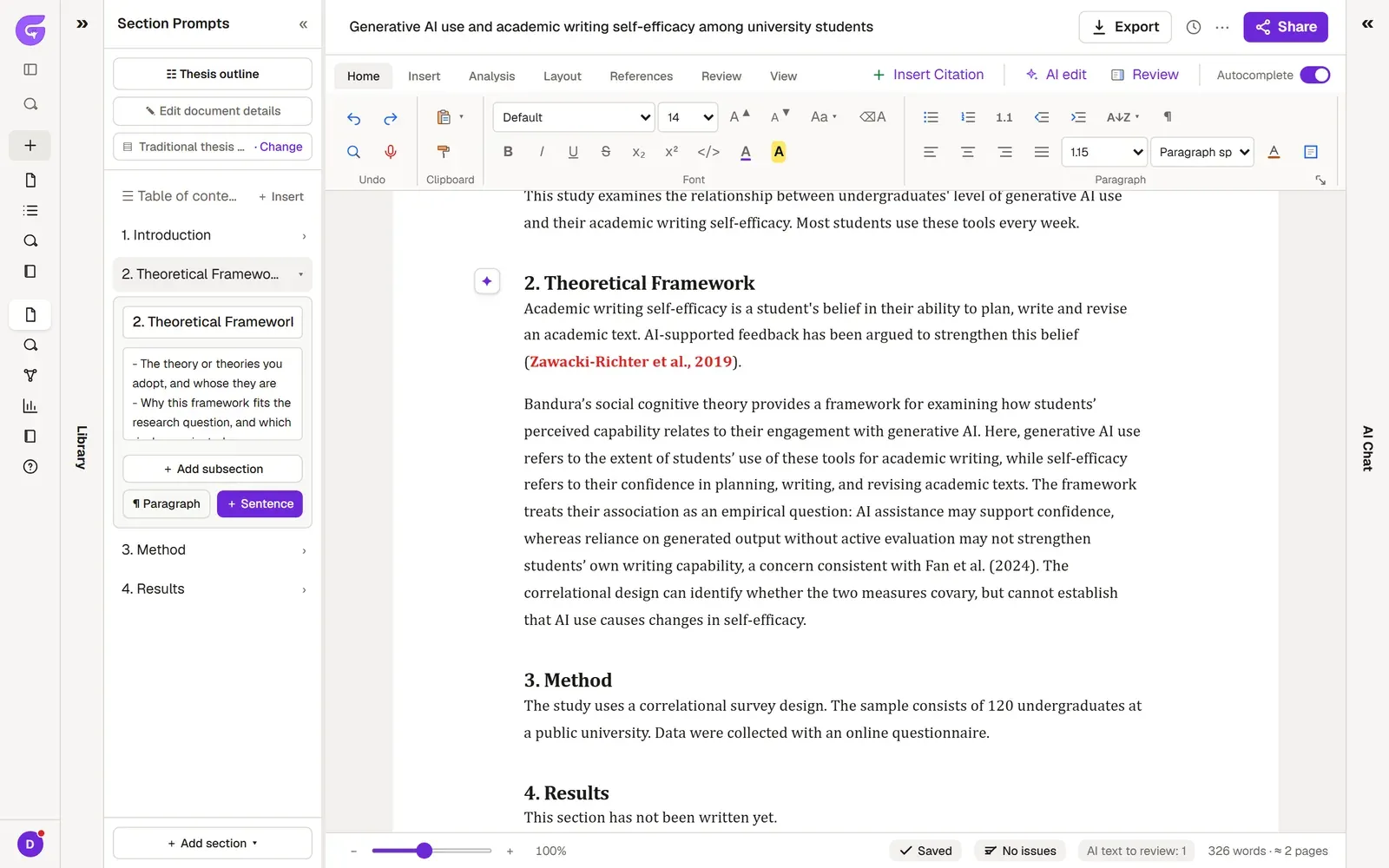
The status bar below the editor shows a count such as Proofreading: 3. Click it to go to the first flagged phrase. When there is nothing to fix, it says No issues, and clicking it checks the whole document again.
Checking a passage on its own
Section titled “Checking a passage on its own”To have a paragraph checked in more detail, select the text, right-click and choose Proofread this from the menu. The selected text goes through the Language & clarity check in the Review your thesis panel, and the panel lists the findings with their suggestions.
Readability
Section titled “Readability”Click the word count in the status bar to open the Readability window. It shows:
- the Flesch Reading Ease score and the US grade level
- Words, Sentences, Paragraphs, Avg words / sentence, Reading time, Characters
- warnings for sentences over 30 words, frequent passive voice and many -ly adverbs
Grongy calculates these straight from the text, without AI. As the window’s own note says, they are guidance, not a grade.
Frequently asked questions
Section titled “Frequently asked questions”Does live proofreading change my text on its own? No, it only underlines. The text changes only when you click Apply.
Why do some lines disappear as I type? The lines follow the text; once the phrase you edited is gone, its line goes too. When you pause typing, Grongy checks the paragraph again.
Is a long document checked from end to end? The first check, when it starts up, covers the beginning of the document; later checks look at the paragraphs you work on. For a whole section, use Proofread this or the Language & clarity check in the panel.