

Research · Library
Importing from Zotero, Mendeley and EndNote
You move the sources you collected in Zotero, Mendeley or EndNote into Grongy without typing them in again. Grongy reads BibTeX (.bib), RIS (.ris) and EndNote (.enw) files, and it can also pull your Zotero library directly.
Importing a file
Section titled “Importing a file”First export your sources from your old program: BibTeX (.bib) or RIS (.ris) from Zotero and Mendeley, an .enw or .ris file from EndNote. Then upload the file in Grongy in one of these three places:
- In your document, open the Write tab.
- In the Library panel on the left, click Import .bib / .ris.
- Choose the file. You can pick several files at once.
- In your document, open the Research tab or the Find papers page.
- Click the + button below the search box.
- Click Import from Zotero / Mendeley (.bib, .ris) and choose the file.
- Open My Library from the menu on the left.
- Click Import .bib / .ris at the top right, or drag the file onto the page.
When the import finishes, Grongy tells you how many sources it added and how many were already in your library. It never adds a source that is already there a second time. Keywords in the file become tags; BibTeX keys stay as they are.
Importing straight from Zotero
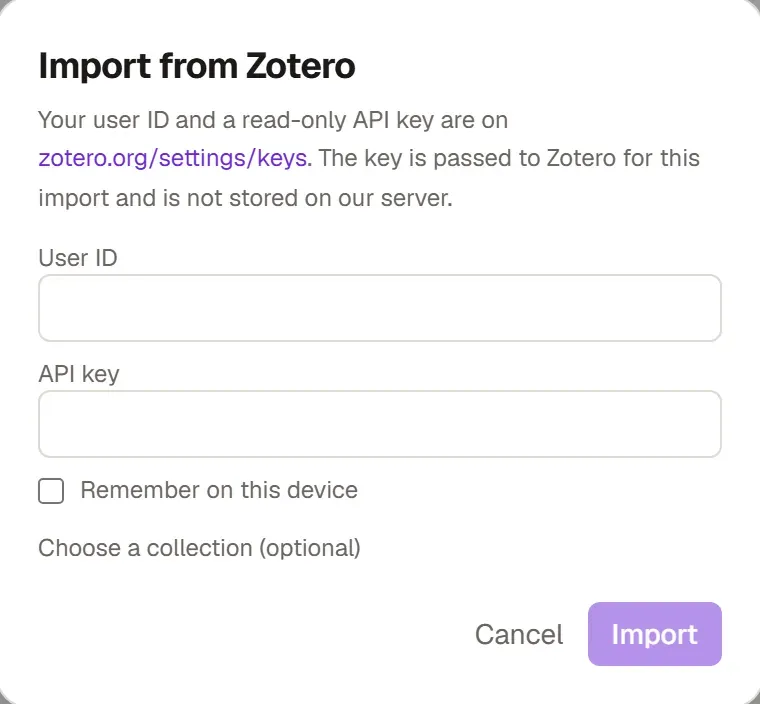
Section titled “Importing straight from Zotero”- Sign in to Grongy. In your document, open the Write tab and click Import from Zotero in the Library panel on the left.
- On zotero.org/settings/keys, note your User ID and create a read-only API key.
- Paste the ID into the User ID box and the key into the API key box. If you like, tick Remember on this device. To have new papers you add in Zotero come into this library each time you open Grongy, also tick Keep in sync.
- From the Choose a collection (optional) list, pick a single collection or Whole library.
- Click Import.
Grongy passes the key to Zotero but doesn’t store it on its server. If Remember on this device or Keep in sync is ticked, the key stays in this browser only. Syncing works in this browser and for the library you turned it on in; you turn it off with Stop syncing in the same window. If your Zotero library is very large, import it one collection at a time.
Live BibTeX link for Overleaf
Section titled “Live BibTeX link for Overleaf”If you write in LaTeX on Overleaf, you link your Grongy library to Overleaf as a .bib file you can keep up to date. You need to be signed in to your Grongy account, on Plus or Pro, for this.
- On the My Library page, open the Tools menu and choose Live BibTeX link for Overleaf. The menu appears once My Library has at least one paper.
- Under Which sources, choose All of My Library or a folder, tag or document. Grongy reads the list from your account, so papers you added on this device appear once they have synced.
- Click Get the link, then Copy.
- In your Overleaf project, choose New file → From external URL, paste the link and name the file references.bib.
- Cite with
\cite{key}in your text. After you add papers in Grongy, open the file in Overleaf and click Refresh.
Frequently asked questions
Section titled “Frequently asked questions”Grongy didn’t read my file. Check that the file really is BibTeX or RIS. If you’re not sure, export it again from your old program in one of these formats.
Can I connect to Mendeley directly? No. Bring your Mendeley sources in with a .bib or .ris file.