

Writing · Document tools
Version history
You bring back a paragraph you deleted by mistake, or yesterday’s state of your document, from Version history. Grongy saves snapshots of your document automatically while you write.
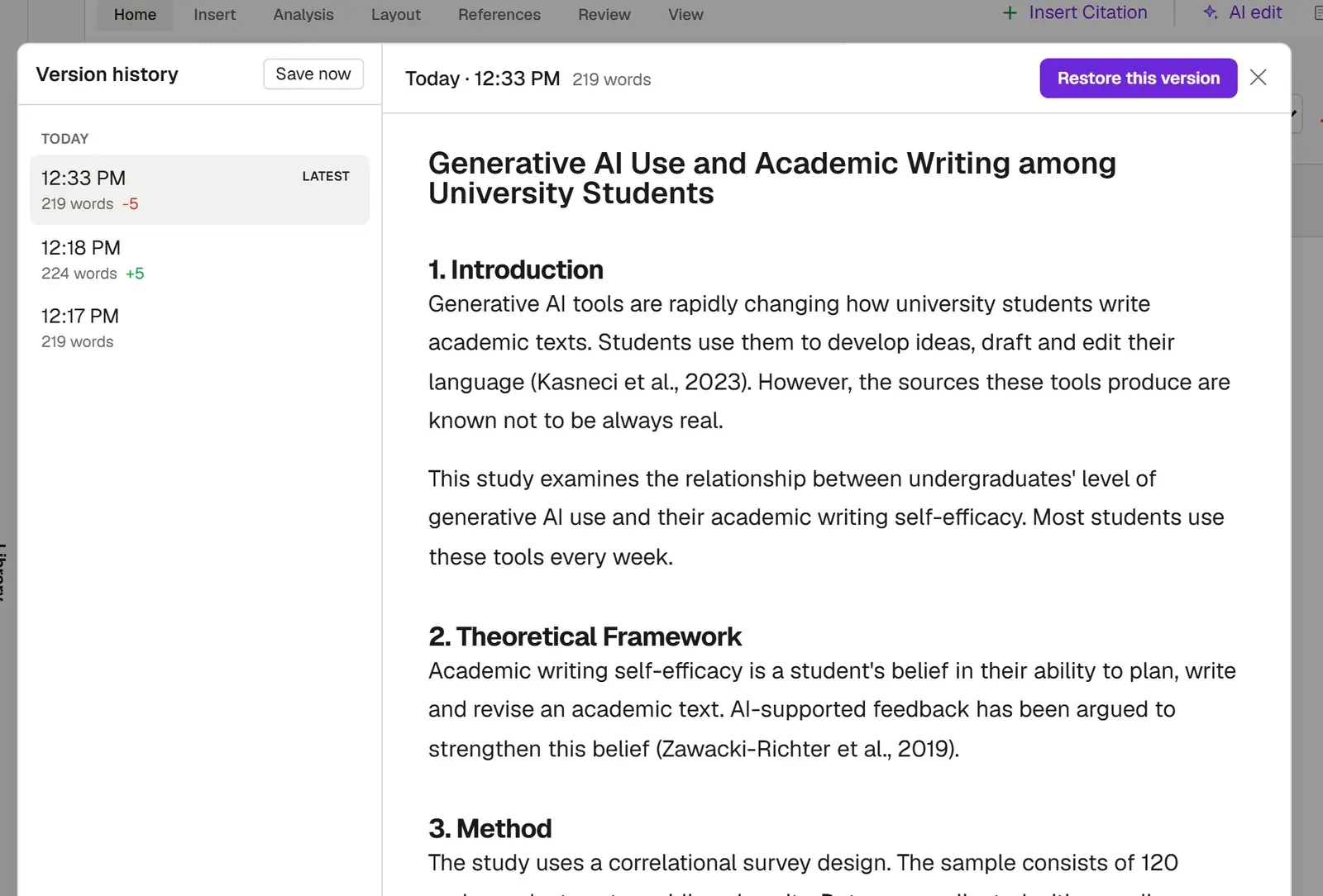
When Grongy saves a version
Section titled “When Grongy saves a version”- Automatically as you write, at most once every two minutes.
- When you save with Ctrl+S (Cmd+S on a Mac).
- When you click Save now in the Version history window.
Grongy keeps the last 40 versions of each document and deletes older ones.
Looking at an older version
Section titled “Looking at an older version”- In the document’s top bar, click the clock icon next to Export; the Version history window opens.
- The list on the left groups versions by day. Each row shows the time, the word count and how many words were added or deleted since the previous version. The newest version carries the Latest tag.
- Click a version; its preview opens on the right.
Restoring a version
Section titled “Restoring a version”- Open the version you want in the preview.
- Click Restore this version.
- In the confirmation window, choose Restore.
Before it restores, Grongy saves your current text to the history too. If you change your mind, restore the newest version in the list and your text goes back to how it was before the restore. Right after a restore, Ctrl+Z also undoes it.
Frequently asked questions
Section titled “Frequently asked questions”A warning says the document was changed on another device. That means it really was edited on another device. Grongy pauses saving so that the two versions don’t overwrite each other. You pick one with Use the other device’s version or Keep what is on this screen; the version you don’t pick is saved to the history too.
The list is empty. If you haven’t changed the document yet, there are no saved versions. Write a little or click Save now.