

Analysis · Analysis and charts
Qualitative analysis
You do the thematic coding you would do in NVivo or MAXQDA inside your document, in the Qualitative section. You apply the codes; the AI at most suggests some.
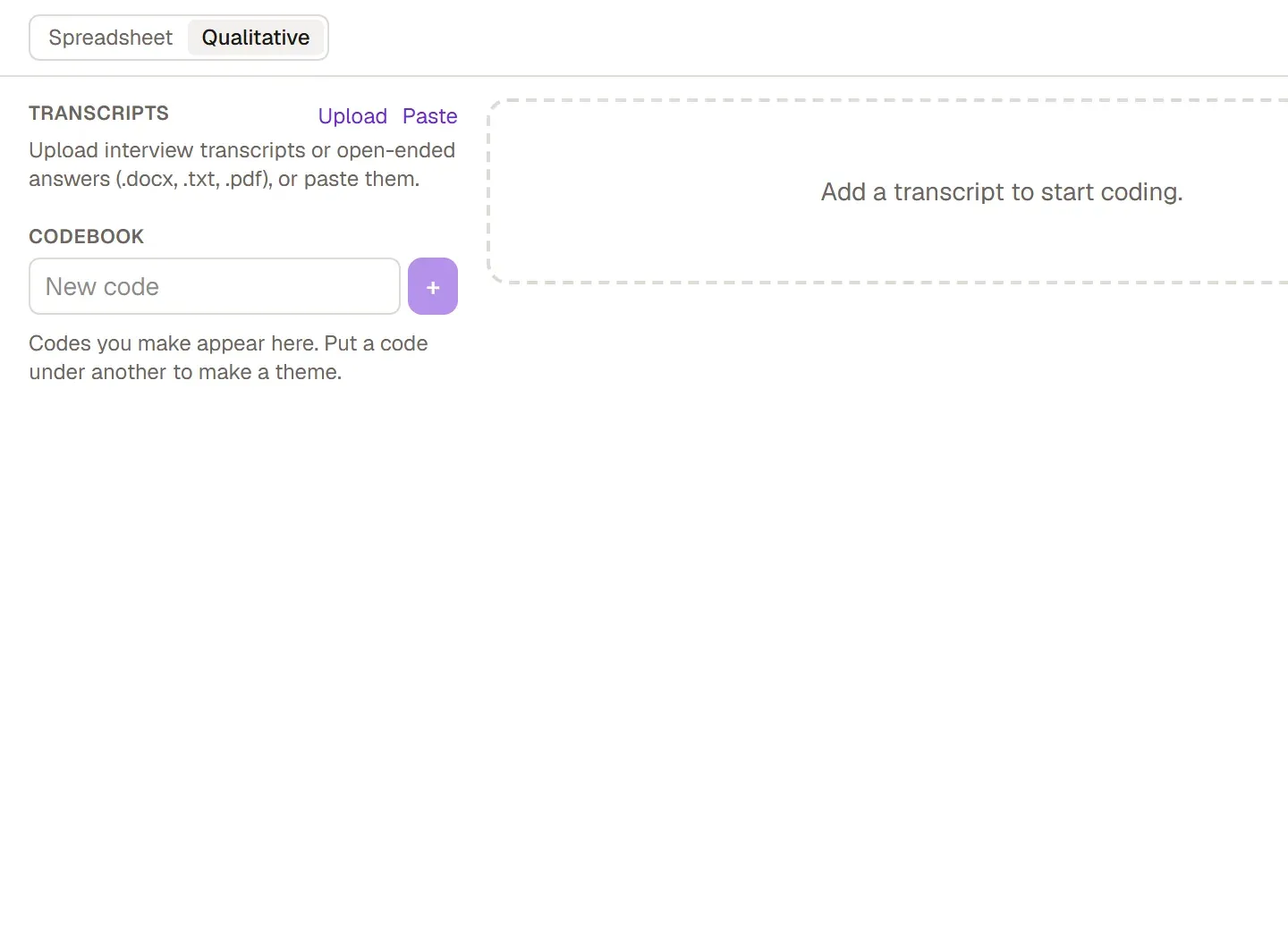
Opening the Qualitative section
Section titled “Opening the Qualitative section”Click Qualitative at the top right of the Analysis tab, or Code transcripts on the editor’s Analysis ribbon.
The screen splits into three columns: Transcripts and the Codebook on the left, the transcript you opened in the middle, and Findings and Agreement on the right.
Adding transcripts
Section titled “Adding transcripts”- Click Upload next to the Transcripts heading and choose your files: .docx, .txt, .md or .pdf. You can upload several files at once.
- To paste the text instead, click Paste. Enter a name (for example Interview 3), a participant code (for example P1) and the text, then click Add.
- Pick a transcript from the list; its text opens in the middle.
Coding
Section titled “Coding”- Select a passage in the transcript with the mouse. The line “Pick a code in the codebook, or make one:” appears at the top.
- Click a code in the Codebook, or type a name in the New code box and click Code.
- The passage you coded takes on a color. Click it to see its codes in the Coded as line. From there you can add another code with Add a code… or click Uncode.
On a phone or tablet you select the passage with a long press and code it the same way.
Themes
Section titled “Themes”You group your codes under themes. Each code in the Codebook has a dropdown beside it; when you put one code under another, the code above becomes a theme. To move a code back to the top, choose Top level.
Findings
Section titled “Findings”The Findings tab on the right shows how many passages and how many participants each theme appears in, along with its first quote. From here you send two things to your document:
- Send the theme table to the document sends the themes and their counts as a table.
- Send with its quotes sends a theme with the participants’ own words.
Grongy inserts what you send where you left the cursor in the Write tab.
Two coders and agreement
Section titled “Two coders and agreement”You compare your coding with a second coder’s and measure how far the two agree.
- In the Coder box above the transcript, choose B.
- Have the second coder code the same transcripts without seeing the first coder’s codes.
- The Agreement tab shows Cohen’s kappa (κ) and the percentage agreement for each code.
Suggest codes
Section titled “Suggest codes”Suggest codes reads the transcript and suggests codes. Each suggestion is tied to a real sentence in the transcript. You decide with Accept or Ignore; nothing you don’t accept enters the codebook. It reads a long transcript in parts; click Next part to continue.
Your transcripts are saved in your account. Before you upload them, remove any information that identifies participants from the text.