

Getting started
Get to know the workspace
When a document is open, the left menu splits in two: the app’s general pages at the top, and that document’s tabs below them, under the Workspace heading.
General pages
Section titled “General pages”| Menu | What’s there |
|---|---|
| New | A new document (Write) or a new chat (Chat) |
| Documents | All your documents |
| Projects | Folders that group your documents |
| Find papers | A paper search that isn’t tied to any document |
| My Library | Your account’s library: all your PDFs and sources |
A document’s tabs
Section titled “A document’s tabs”| Tab | What it’s for |
|---|---|
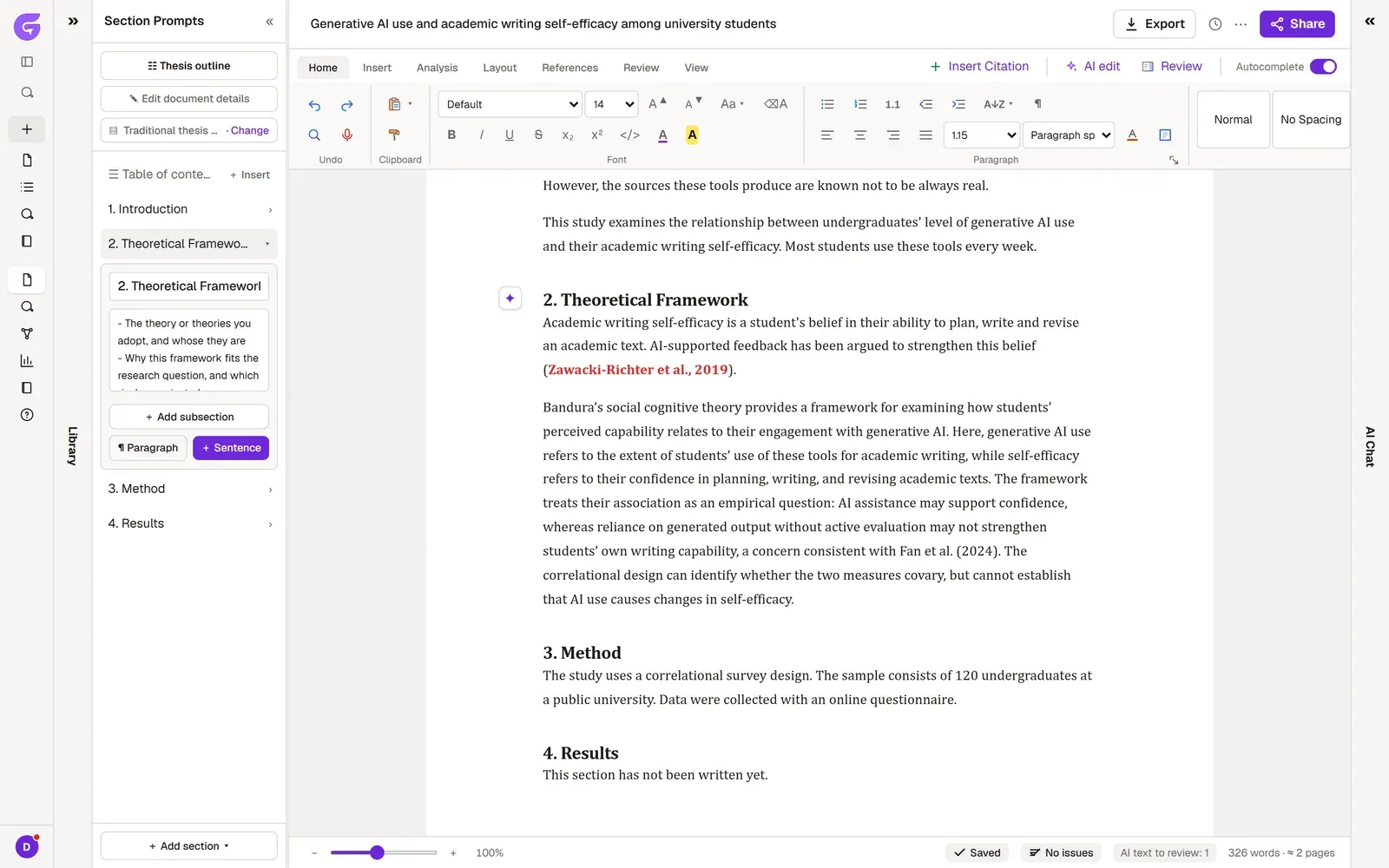
| Write | The editor. The document’s library and section prompts sit to its left, AI Chat to its right. |
| Research | You search for papers for this document. The document’s library and the Map and Synthesis views are here too. |
| Memory | What Grongy keeps about your document: sections, terms, gaps and your notes. |
| Analysis BETA | Data, statistics and charts. It appears only for empirical study types (ones with their own data). |
| Bibliography | The reference list and the AI-use disclosure. |
| Guide | Shows which step of your thesis you’re on and what to do next. |
The editor’s ribbon
Section titled “The editor’s ribbon”The ribbon has these tabs: Home, Insert, Analysis, Layout, References, Review and View. Export, version history and Share sit in the top-right corner. Document editor covers what’s on each tab.