

Research · Library
Library and My Library
Your sources live in two separate libraries. Every document has its own library; My Library is the shared library of your account, tied to no document.
| The document’s library | My Library | |
|---|---|---|
| Where | The Library panel on the left of the Write tab, and the Research tab | My Library in the menu on the left (grongy.co/app/library) |
| What for | The sources this document can cite | Every paper you have saved |
| Citing | Grongy cites only the sources here | You don’t cite from here directly; you add the paper to a document first |
Adding sources to a document
Section titled “Adding sources to a document”- Search with Find papers and click Add.
- Drop a PDF onto the Upload or drop a PDF area in the Library panel. Grongy reads the file and fills in the title, authors, year and journal itself.
- Use Add from My Library to copy papers from My Library into this document, PDFs included.
- How to bring in your sources from Zotero, Mendeley or EndNote is on the Importing page.
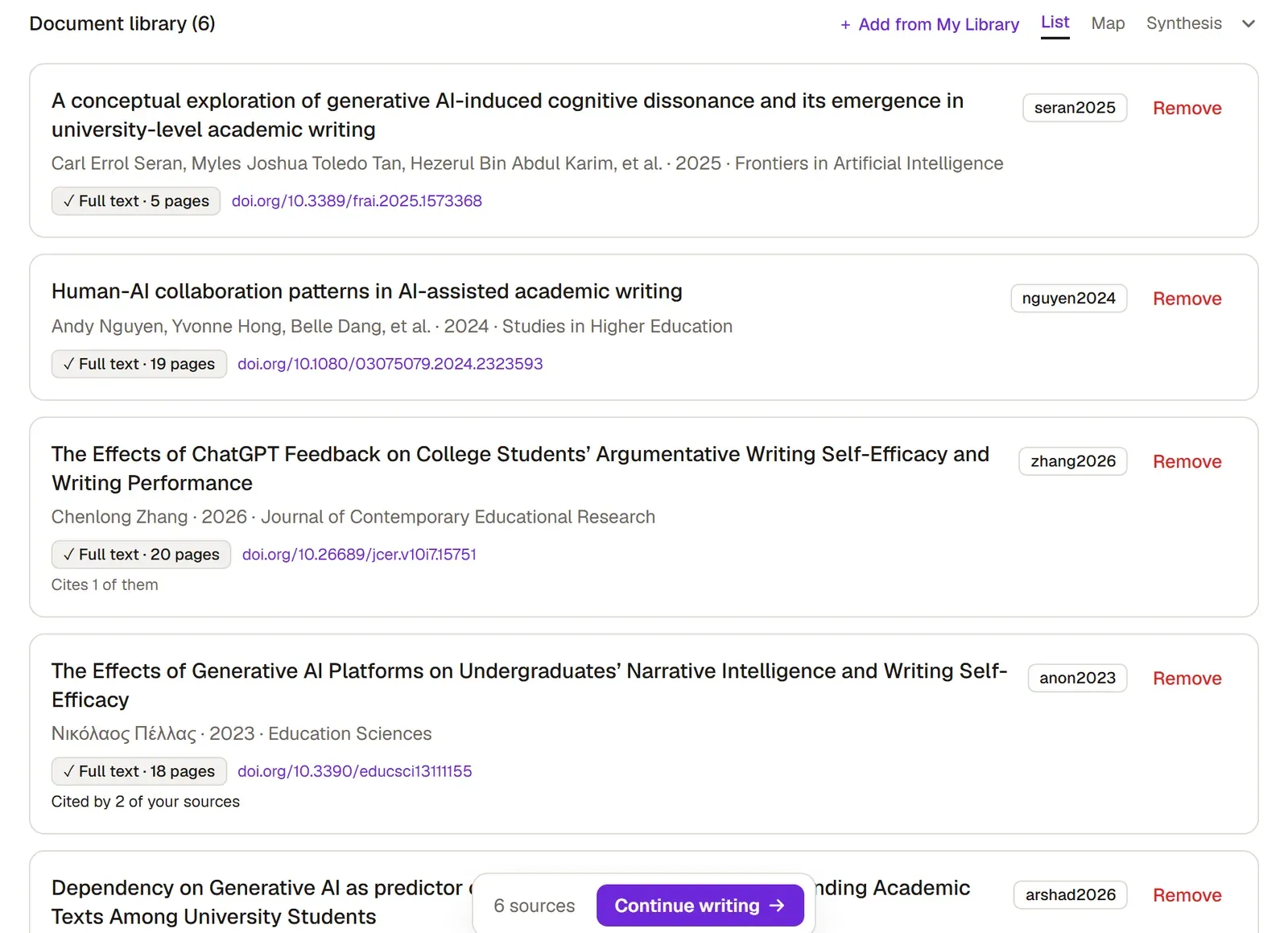
What full text means
Section titled “What full text means”When you add a PDF, Grongy reads the text page by page and indexes it. The card then shows a mark like Full text · 17 pages. Grongy can quote and give page numbers only from text it has indexed.
- No PDF yet: the paper is open access and Grongy is looking for its PDF.
- PDF needed — manual upload required: Grongy couldn’t get the PDF. Open the publisher’s page with Download the paper and download the file; then click Upload PDF or drop the PDF onto the card.
Organizing your sources
Section titled “Organizing your sources”- To mark your reading status, click Unread at the top of the card: the first click makes it Reading, the second Read. To filter the list by reading status, use the ≡ button at the top of the panel.
- To build a collection, click Details on the card, type a tag in the + Add tag (Enter) box and press Enter. Each tag becomes a collection on the Collections tab; click one and the list shows only that collection.
- If you spot a mistake in the reference details, correct the title, authors, year, journal and other fields with Edit. Grongy builds citations and the bibliography from these fields.
- To remove a source, click the trash can icon on the right of the card. The paper goes to the Trash with its PDF and highlights and stays there for 30 days; in that time you can bring it back with Restore. If you delete it permanently from the trash, it doesn’t come back.
If you added the same paper twice, a duplicate source found line appears at the top of the panel. Remove deletes the extra copies.
My Library
Section titled “My Library”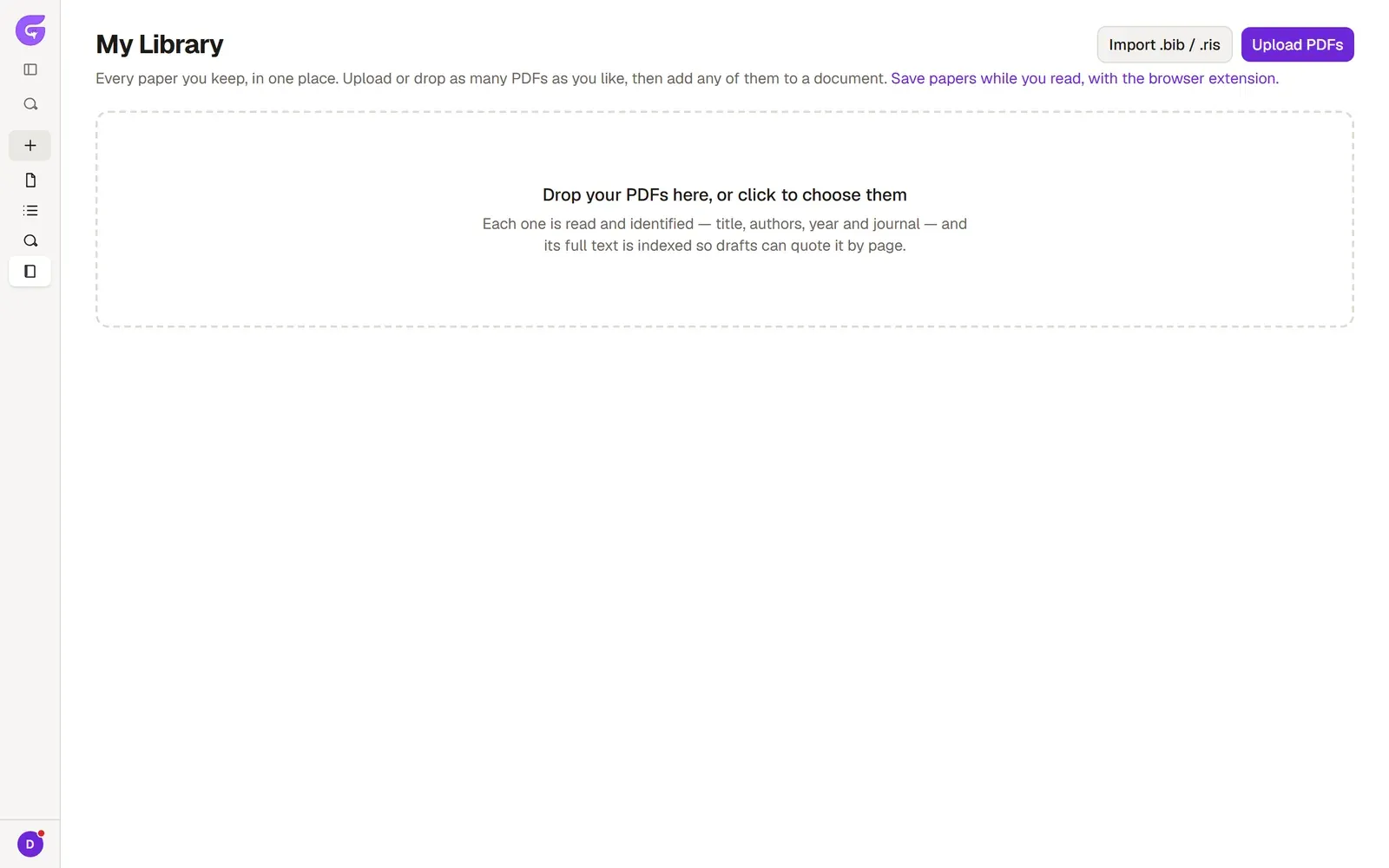
- Upload several PDFs in one go with Upload PDFs, or drag the files onto the page. On the free plan the page counts your own PDFs: up to 20, each up to 10 MB and 150 pages, 50 MB in total.
- To send papers to a document, tick them, click Add to document and choose the document they go to.
- Under Folders, create a New folder and drag papers onto it. Smart groups fill themselves by a rule; one, for example, gathers the papers that don’t have a PDF yet.
- Search inside PDFs also finds your search word in the papers’ text and shows the page it appears on.
- Notebook brings together your highlights and notes from every paper.
- The Tools menu holds Find duplicates, Fill in missing details, Download PDFs as a zip and, on Plus and Pro, the live BibTeX link for Overleaf.
Frequently asked questions
Section titled “Frequently asked questions”If I delete a paper from My Library, is it gone from my documents too? No. The copies in the documents you added it to stay where they are.
Do my PDFs show up on other devices? If you’re signed in, your PDFs sync to your account. How much storage you get depends on your plan; the details are on the Plans page.