

Writing · Writing with AI
Editing with AI
You select a passage and have the AI correct it, simplify it or translate it. The result isn’t written straight over your text: it shows up first as a change, and it goes into the text once you approve it.
Editing a passage
Section titled “Editing a passage”- Select a sentence or a paragraph in the editor.
- Click the AI edit (✦) button on the right of the ribbon. Right-clicking the selected text opens the same menu.
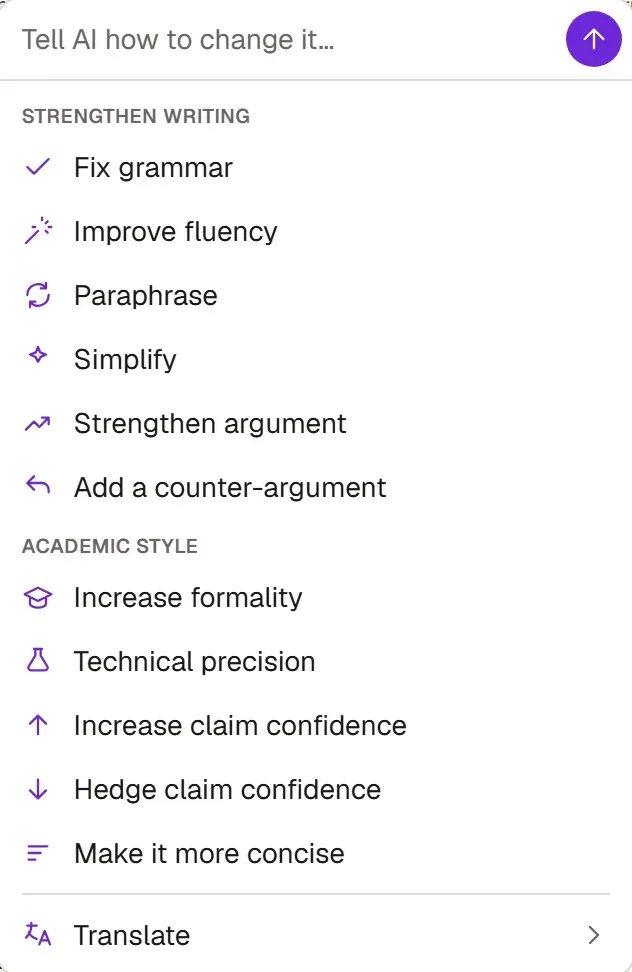
- Type what you want in the box at the top (e.g. “shorten the second sentence”) and press Enter, or click one of the ready-made options below it.
- The change appears in the text: additions in green, deletions in red and struck through.
- To accept a change, click it. In the bar at the top, Accept all takes them all at once and Reject rest turns down the ones that are left.
Ready-made options
Section titled “Ready-made options”- Strengthen writing: Fix grammar, Improve fluency, Paraphrase, Simplify, Strengthen argument, Add a counter-argument
- Academic style: Increase formality, Technical precision, Increase claim confidence, Hedge claim confidence, Make it more concise
- Translate: English, Turkish, Spanish, French or German
The ready-made options keep the citations in your text, and Add a counter-argument doesn’t invent any. Still, read the result before you accept it.
If you click AI edit with nothing selected, Grongy works on the paragraph your cursor is in. This time the menu also has a Continue writing section. Its Write next sentence and Write next paragraph read the whole document and carry on writing from where your cursor is.
Other tools in the right-click menu
Section titled “Other tools in the right-click menu”- For Synonyms, right-click a word or select up to three words. The word you pick from the list replaces the old one right away.
- Proofread this checks the language and style of the selected text.
- Translate translates the selected text into another language.
Setting the document’s style
Section titled “Setting the document’s style”These settings on the References tab affect every text Grongy writes in this document:
- Writing language sets the language Grongy writes in for this document. If you write in English, choose English; text you have already written isn’t translated.
- Writing register lets you pick one of four preset styles, such as More formal or Simpler language. This setting isn’t a way to hide AI writing; the integrity rules apply in every style.
- For Write in my style, paste a few paragraphs you wrote yourself or upload a file. Grongy measures your sentence structure and imitates your rhythm; it doesn’t reuse your content. This feature is in the Plus and Pro plans.
Frequently asked questions
Section titled “Frequently asked questions”The change was wrong. How do I undo it? If you haven’t accepted it yet, click Reject rest. If you have, undo it with Ctrl+Z.
I get a warning when I click without selecting anything. If your cursor is on an empty line, there is no text to edit. Select some text first.