

Review
Review your thesis panel
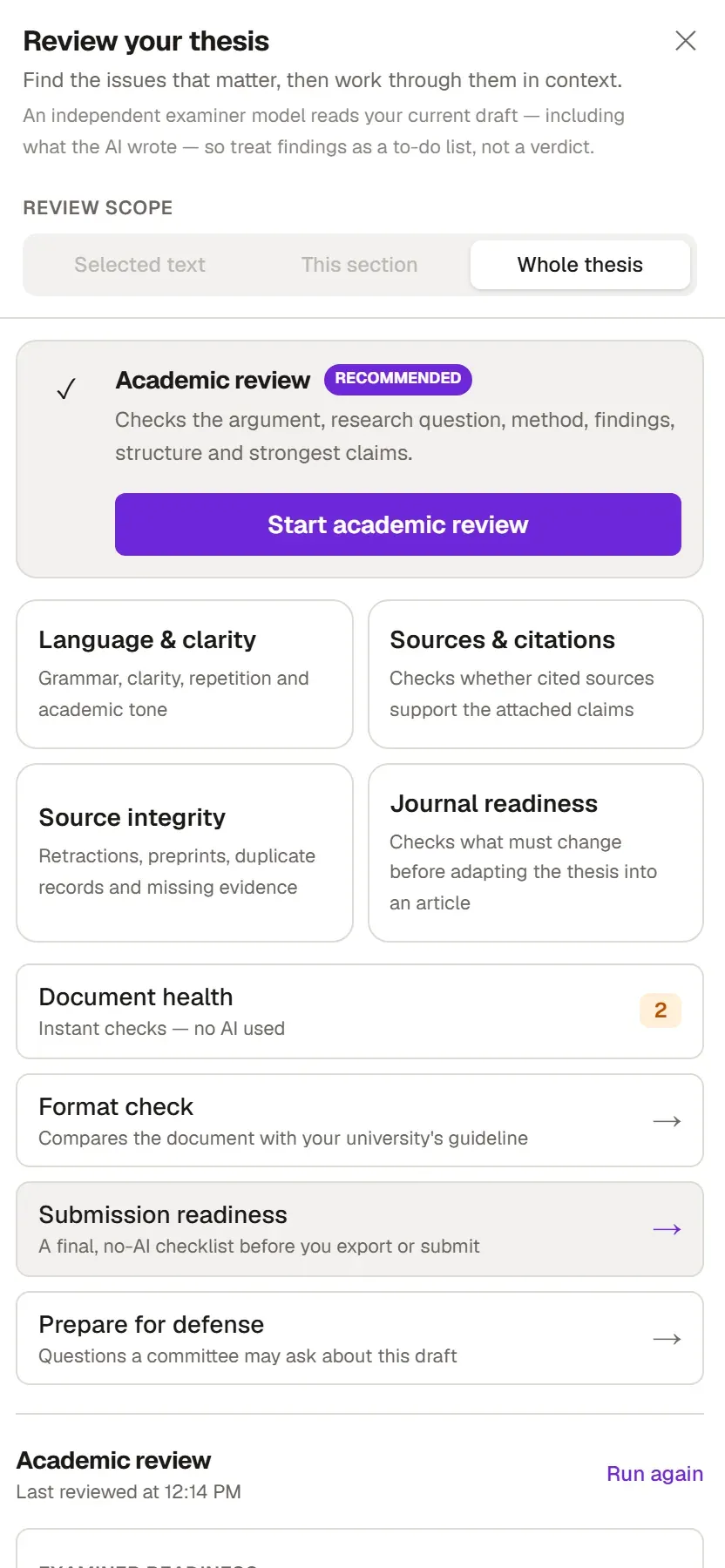
You choose a check, Grongy reads your text, and it lists every problem it finds, quoting the sentence where it occurs. All of Grongy’s checks are gathered in the Review your thesis panel.
Opening the panel
Section titled “Opening the panel”- On the ribbon above the editor, switch to the Review tab.
- In the Document group, click Review panel. The Review button at the right end of the ribbon opens the same panel and is visible on every tab.
- The panel opens on the right.
If you brought in a finished text when you created the document, choose Check and improve it in the last question and click Open Review. The panel then opens by itself along with the document.
Scope: what to review
Section titled “Scope: what to review”Review scope at the top of the panel has three options:
- Selected text: the part you selected in the editor. This option becomes available when you open the panel after selecting text.
- This section: the section where the cursor is.
- Whole thesis: the entire document.
Document health, Format check, Submission readiness and Source integrity always look at the whole document. When you run one of them, the scope switches to Whole thesis by itself.
Options
Section titled “Options”| Option | What it does |
|---|---|
| Academic review (Recommended) | Checks the argument, research question, method, findings, structure and key claims. Details |
| Language & clarity | Looks at grammar, clarity, repetition and academic tone. |
| Sources & citations | Checks whether your sources support the claims you base on them. Details |
| Source integrity | Finds retracted publications, preprints, duplicate records and missing evidence. |
| Journal readiness | Shows what needs to change before you turn your thesis into an article. |
| Document health | Checks that give instant results without AI. Details |
| Format check | Compares the document with your university’s guideline. Details |
| Submission readiness | The last checklist before export; does not use AI. Details |
| Prepare for defense | Lists the questions a committee might ask about this draft. Details |
You can stop a review in progress with Stop; your earlier results are not deleted. Run again above the results starts the same check over from the beginning.
Working with findings
Section titled “Working with findings”Each finding comes on its own card. On the card you see:
- The severity: Critical, Important or Minor.
- The sentence where the problem occurs, in quotation marks.
- An explanation of the problem and, if there is one, a suggestion.
- Go to, which takes you to that sentence in the text. If the finding concerns a whole section, the button reads Go to section.
- An Apply button as well, when the suggestion is wording that can go straight into the text.
- Dismiss, which removes the finding from the list.
Findings Grongy is not sure about start with Worth checking. The Needs your material label says that only information you can add, such as your own data or field notes, can solve the problem.
The results section also contains:
- Examiner readiness, which sums up the overall state of the text in one sentence and lists the points an examiner is most likely to question.
- Priority issues: the few findings to deal with first.
- Examiner map, which shows every check this run looked at and its status. The map holds only the checks this run covered. A topic missing from the map is not clean; it simply was not looked at this time.
- Everything else, which collects the remaining findings. You can filter them by group with the buttons above (All, Structure & academic logic, Claims & sources and others).
Frequently asked questions
Section titled “Frequently asked questions”Why is the Selected text option grayed out? No text was selected in the editor when you opened the panel. Select the text first, then open the panel again.
Do the results disappear? No. The results stay even if you close the tab; the panel shows the time or date of the last review.
Does it cost anything? Reviews that use AI require you to be signed in, and they count against your account’s usage allowance. Document health, Format check, Submission readiness and Source integrity do not use AI. How the plans differ is on the Plans page.