

Writing · Writing with AI
Autocomplete
If you stop typing for a moment at the end of a paragraph, Grongy suggests the rest of the sentence in gray text. If you like it, you take it; if you don’t, you keep typing.
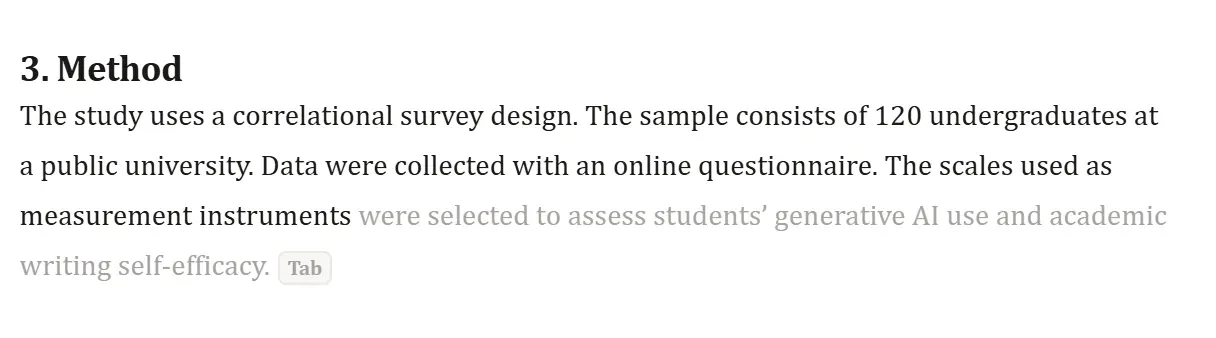
In the example above, the author typed “The scales used as measurement instruments” and paused, and Grongy completed the sentence in gray. The black part is the author’s; the gray part is the suggestion.
How to use it
Section titled “How to use it”- Click at the end of a paragraph in the editor and type.
- Pause for about half a second. A gray suggestion appears right after your cursor, with a small Tab mark next to it.
- To take the suggestion, press Tab or click the gray text. The suggestion turns black and becomes part of your text.
- If you don’t want it, press Esc or keep typing; the suggestion disappears.
If you click on the first line of an empty section, Grongy may suggest an opening sentence for that section. Phones have no Tab key; just tap the gray text.
Turning it on and off
Section titled “Turning it on and off”Autocomplete is on by default. You turn it on and off with the Autocomplete switch at the right end of the ribbon.

On a narrow screen, the switch’s label is hidden and only its icon and the switch itself remain. To change the default, click your name at the bottom left and go to Settings → Preferences → Inline autocomplete.
When no suggestion appears
Section titled “When no suggestion appears”- While text is selected.
- While your cursor is in the middle of a paragraph. Suggestions appear only at the end of a paragraph; they never squeeze in between your words.
- While green text on screen is waiting for you to accept it. Accept or reject it first; the Section prompts page shows how.
- When your usage allowance runs out. Suggestions pause and you see a warning; the details are on the Plans and billing page.
Frequently asked questions
Section titled “Frequently asked questions”Does the right arrow (→) key accept the suggestion? No. The right arrow only moves the cursor; you take the suggestion with Tab or by clicking it.
I don’t see any suggestions. Make sure the switch is on and your cursor is at the very end of a paragraph. If green text on screen is waiting for you to accept it, accept or reject it first. A completely empty document gets no suggestions; write a heading or a few words first.
I want longer text. Autocomplete gives short suggestions. For a paragraph or a single sentence, use the ¶ Paragraph and + Sentence buttons in the Section prompts panel.