

Research · Library
Browser extension
With the Grongy extension, you save a paper you’re reading in your browser to My Library. The title, authors and other reference details come along on their own, and so does the PDF wherever you can open the paper. The extension works in Chrome, Edge and Brave.
Installing it
Section titled “Installing it”- In Grongy, open the Apps and extensions page.
- On the Browser extension card, click Install in the Chrome, Edge and Brave row. The extension’s Chrome Web Store page opens.
- Add the extension to your browser from there. If you use Edge, the browser may ask you the first time to allow extensions from other stores.
- Pin the extension to the toolbar so its icon is always visible.
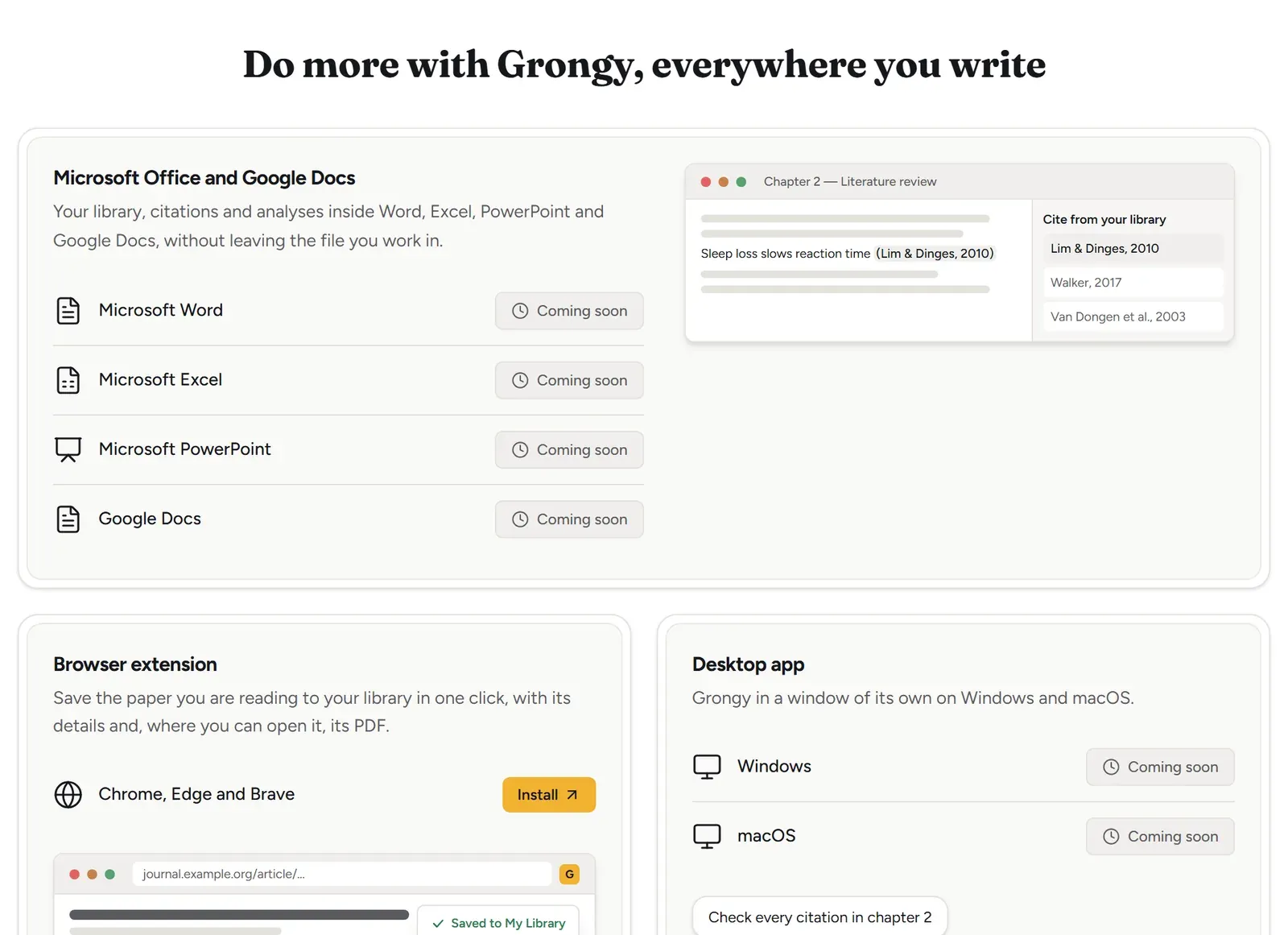
The Word, Excel, PowerPoint and Google Docs add-ons and the desktop and mobile apps on the same page aren’t available yet; they are marked Coming soon. The browser extension is the only one you can install today.
Saving a paper
Section titled “Saving a paper”- Open the paper’s page or its PDF in your browser.
- Click the Grongy icon in the toolbar or press Alt+Shift+G. You can also right-click the page and choose Save this paper to Grongy.
- The Save to Grongy window opens. Check that the title came through correctly; if you like, add tags and a note under Tags, note, document. If you’re signed in, you can also send the paper to a document from the Also add to a document list.
- Click Save to My Library.
If you’re signed in to your Grongy account, the extension saves the paper in the background and you stay on the page. If you aren’t, My Library opens in a new tab and the paper is added there.
When the PDF comes along
Section titled “When the PDF comes along”- If the window says PDF link found, the PDF is saved too. The extension takes the PDF from the open page, with your access, which is why papers you open through your university subscription come along as well.
- If it says No PDF link on this page, only the reference details are saved. Grongy then looks for a free, legal copy of the paper itself.
- If the PDF is on another site, the extension asks for your permission with Allow PDFs from publisher sites. Allow it and save the paper again.
The extension doesn’t get past sign-in screens or paywalls. If the site won’t give you the PDF, drop the file into My Library later; Grongy links it to the paper you saved on its own.
Privacy
Section titled “Privacy”The extension reads a page only when you click its icon, use its menu item or press the shortcut. It sends what you save only to your own Grongy account.
Frequently asked questions
Section titled “Frequently asked questions”Is it available for Firefox or Safari? Not at the moment; the extension works only in Chrome, Edge and Brave.
How do I use a saved paper in a document? While saving, pick the document from the Also add to a document list, or bring the paper in later from the document with Add from My Library. The Library page explains how a document’s library differs from My Library.