

Writing · Writing with AI
Section prompts
You have Grongy write a sourced paragraph or a single sentence for a section you choose. Each time, you get only as much as you ask for; Grongy doesn’t write your thesis for you. The Section Prompts panel sits to the left of the editor on the Write tab and lists the document’s sections.
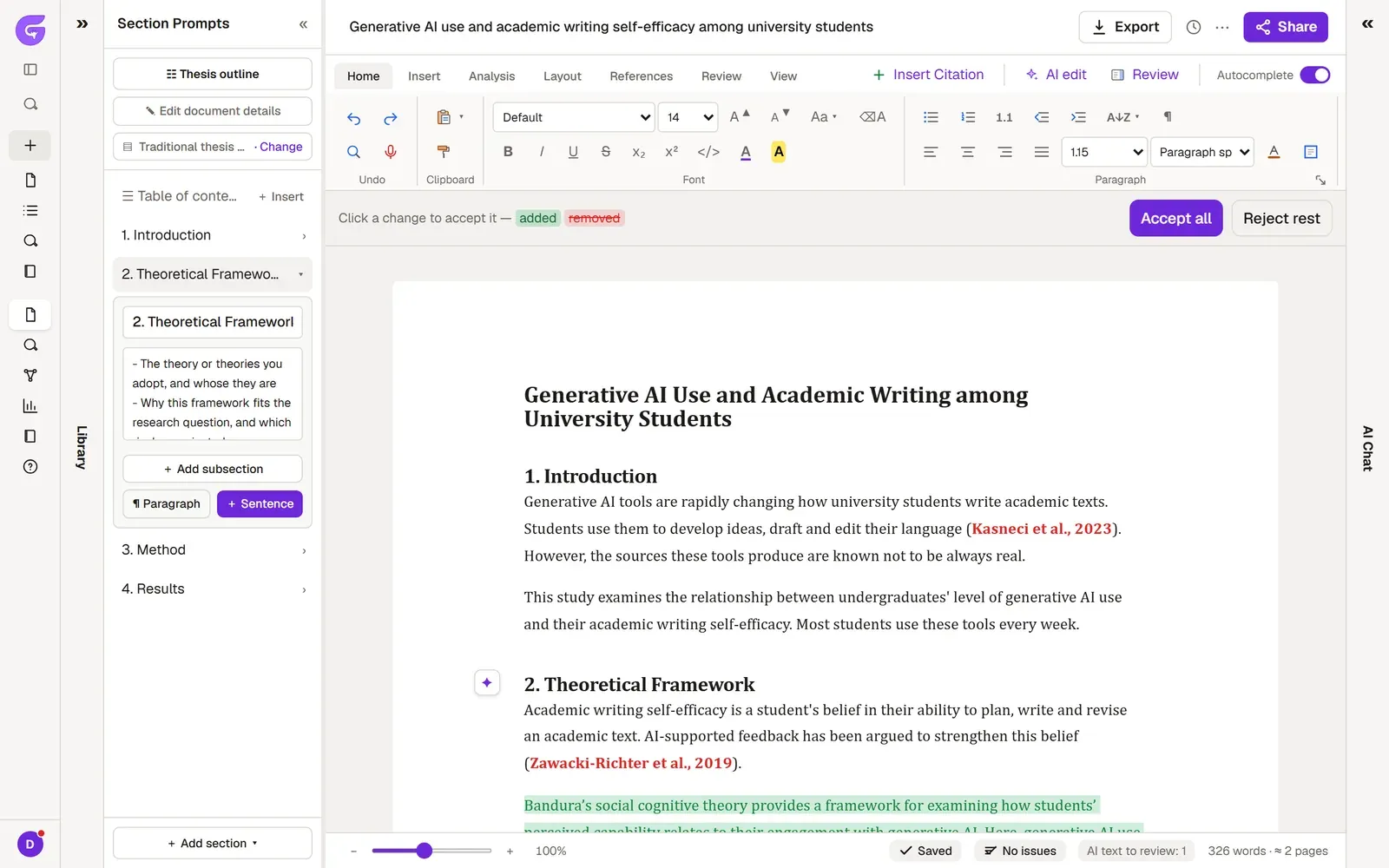
The top of the panel
Section titled “The top of the panel”- The three rows at the top show how the document is set up; click one to open its dialog. Structure is the document’s structure, such as IMRaD or Turkey’s Format 1 thesis; when you switch to another, sections you have written in stay where they are unless you delete them. Format is the format rules the document is checked against, such as your university’s thesis guidelines. Details holds the real facts of your study: your sample, your method, your data. The AI never makes up a detail you leave blank; it flags it as missing.
- Thesis outline (Outline in documents other than a thesis) first shows what the plan will be built from: your topic, structure, length, details and library. Create the plan then suggests sections and subheadings; it writes no text. You edit the headings it suggests on the page, then press Add the plan to Sections. If your document has no text yet, the headings come straight into Sections; no text is written.
- If your document already has text, it stays as it is: the plan waits under the section list as From your plan and shows only the chapters and headings your document lacks. Click one to add it, or Add all for the rest; each goes in at its place in the plan.
- Insert in the Table of contents row builds the table of contents. If the table already exists, the button says Update and refreshes it.
Having Grongy write for a section
Section titled “Having Grongy write for a section”- Click a section in the list. The section opens, and the editor jumps to that heading.
- If you like, change the section’s name in the box at the top. In the box below it, you can describe what the section should cover, or leave it empty.
- Click ¶ Paragraph and a new sourced paragraph arrives at the end of the section. + Sentence adds a single sentence to the section’s last paragraph.
- Grongy first searches for the sources that best fit this passage; meanwhile the bottom of the panel reads “Finding the strongest sources for this passage…”.
- The new text arrives marked in green. Once you’ve read it, click Accept in the bar below it. To change something, open Refine suggestion, write what you want (e.g. more concise) and click Refine. Text you don’t want, you discard with ✕.
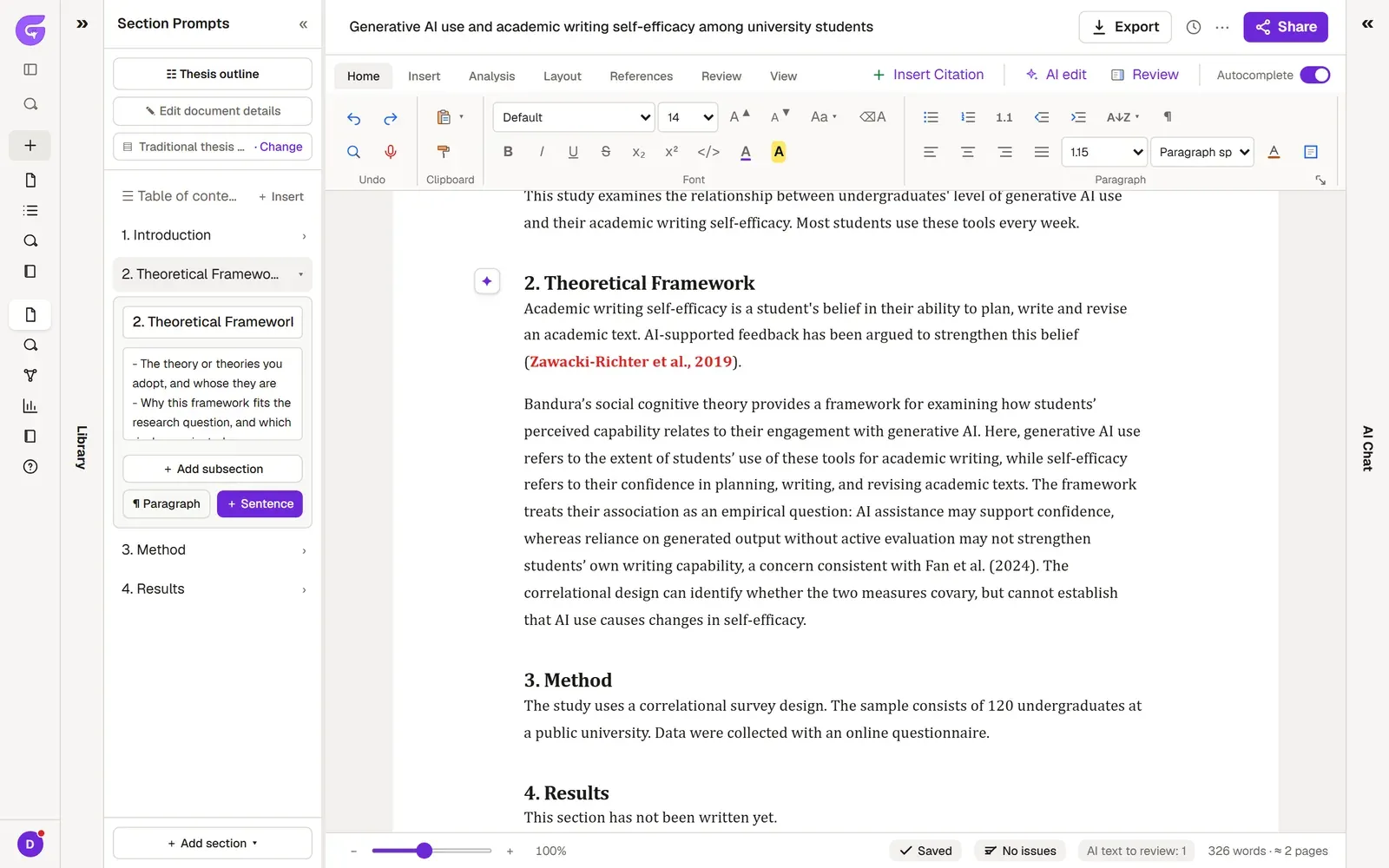
AI text to review
Section titled “AI text to review”Every paragraph the AI writes is counted in the AI text to review counter in the bottom bar until you have looked it over. Click the counter and a bar opens that takes you through these paragraphs in turn:
- For a paragraph you have read and will keep, click Mark reviewed.
- Check its citations checks whether the cited sources really support the sentence.
- Remove paragraph deletes the paragraph; Ctrl+Z brings it back.
- Next paragraph takes you on to the next one.
Still, open the sources and read them yourself; you are the author of the text. The Citation check page explains how citations are checked.
Arranging sections
Section titled “Arranging sections”Hover over a section to see its buttons: ↑ and ↓ move the section up or down, + adds a subheading, ✕ removes the section. In an open section, you can also add a subheading with Add subsection. The Add section menu at the bottom holds the sections that fit your document’s structure, along with Change structure and Custom section.
Frequently asked questions
Section titled “Frequently asked questions”The panel disappeared. How do I open it? When the panel closes, a vertical Sections strip stays to the left of the editor; click it.
The text isn’t coming in English. Each document has its own writing language. On the References tab, set Writing language to English. Grongy doesn’t translate text that is already written.