

Analysis · Analysis and charts
Statistical analyses
You pick an analysis and put the variables in place; Grongy gives you the result as an APA-style table, a reporting sentence and a suitable figure. The Statistics page works like SPSS or jamovi, but you write no code.
Who calculates the numbers
Section titled “Who calculates the numbers”Grongy’s own statistics engine calculates every number on your device. The AI neither calculates statistics nor makes up numbers. Whether a test fits your research design is your decision.
Which analyses there are
Section titled “Which analyses there are”The most common ones sit on the Statistics tab of the Spreadsheet ribbon: Descriptive statistics, Frequencies, Independent-samples t-test, One-way ANOVA, Correlation, Linear regression, Chi-square test and Reliability (Cronbach’s alpha).
You find all of them, sorted into groups, in the Analysis list on the left of the page:
- Describe: Descriptive statistics, Frequencies
- Compare groups: Independent-samples t-test, Paired-samples t-test, One-sample t-test, Mann–Whitney U, Wilcoxon signed-rank, One-way ANOVA, Kruskal–Wallis, Two-way ANOVA, Repeated-measures ANOVA, Friedman test
- Relationships: Correlation, Chi-square test
- Scales: Reliability (Cronbach’s alpha), Principal component analysis
- Models: Linear regression, Logistic regression, Mediation (PROCESS model 4), Moderation (PROCESS model 1)
- Planning: Sample size (power analysis)
All analyses shows each analysis on its own card, with an example figure.
Running an analysis
Section titled “Running an analysis”- At the bottom, choose the data sheet you want to analyze. How to open your data is on the Uploading data page.
- Pick an analysis from the Statistics tab or from the list on the left, for example Correlation.
- Assign the variables to their slots. Slots such as Variables, Outcome or Group (2 levels) change with the analysis. Grouping variables show how many groups they have; you cannot pick a three-group variable for a test that needs two groups.
- If the analysis has options, set them too. In Correlation, for example, you choose Pearson or Spearman as the Method.
- Click Run. The button does nothing until every slot is filled.
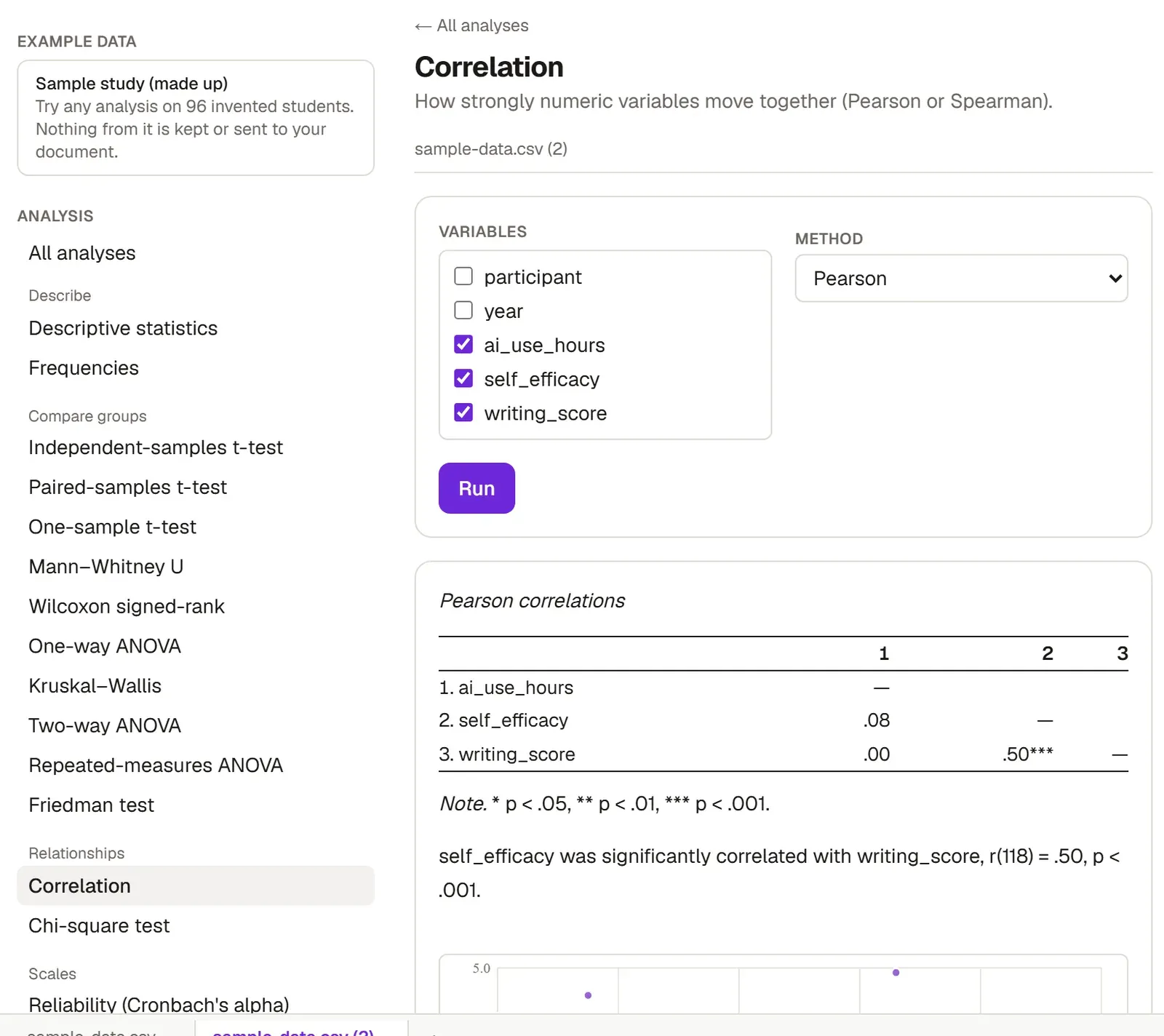
The result comes as an APA table, a sentence that reports it, assumption checks and a figure. Grongy keeps every result in the Analysis log. When you change a variable, the old result goes away; click Run again with the new variables. How to bring the result into your document is on the Sending to your document page.
The example panel and Report it like this
Section titled “The example panel and Report it like this”You can see what a result will look like before you run anything. On a wide screen, the Example on the sample study panel sits on the right. It holds a research question, a figure, an example sentence under Report it like this, and See the table.
Sample study (made up)
Section titled “Sample study (made up)”If you have no data yet, click Sample study (made up) in the Example data box on the left and try any analysis on data from 96 made-up students. Results from this data are not saved and cannot be sent to your document. To go back to your own data, click the box again.
Sample size
Section titled “Sample size”You work out how many participants you need before you collect any data. Open Sample size (power analysis) under Planning. Choose a t-test, One-way ANOVA or Correlation as the Test, and enter the effect size, α and the Power. Grongy writes the number of participants you need as a sentence. Add that sentence to your Method chapter with Send to document.
Frequently asked questions
Section titled “Frequently asked questions”Should I use the suggested analyses? Grongy makes its suggestions by looking only at the structure of your columns. Choose the analysis your research question calls for.
Can I open an analysis from the editor? Yes. The Run an analysis group on the editor’s Analysis ribbon has Describe data, Compare groups, Correlation, Linear regression, Reliability and All analyses buttons. Each one opens this page with its own analysis.