

Research · Reading and comparing
PDF reader and Ask the paper
You read a paper from your library without leaving Grongy. In the panel next to the reader you ask the paper questions, correct its reference details and keep your notes.
Opening the reader
Section titled “Opening the reader”- On the Write tab, click the source’s Read button in the Library panel on the left. When the panel is narrow, only a book icon stands in place of the button; hover over it and it says Open this PDF in the reader.
- On the Research tab, just click the source’s title.
- In My Library, click the paper’s title or the PDF button on its right.
If the paper has no PDF yet, Grongy first looks for a free copy. If it can’t find one, you add the PDF yourself; the Library page shows how.
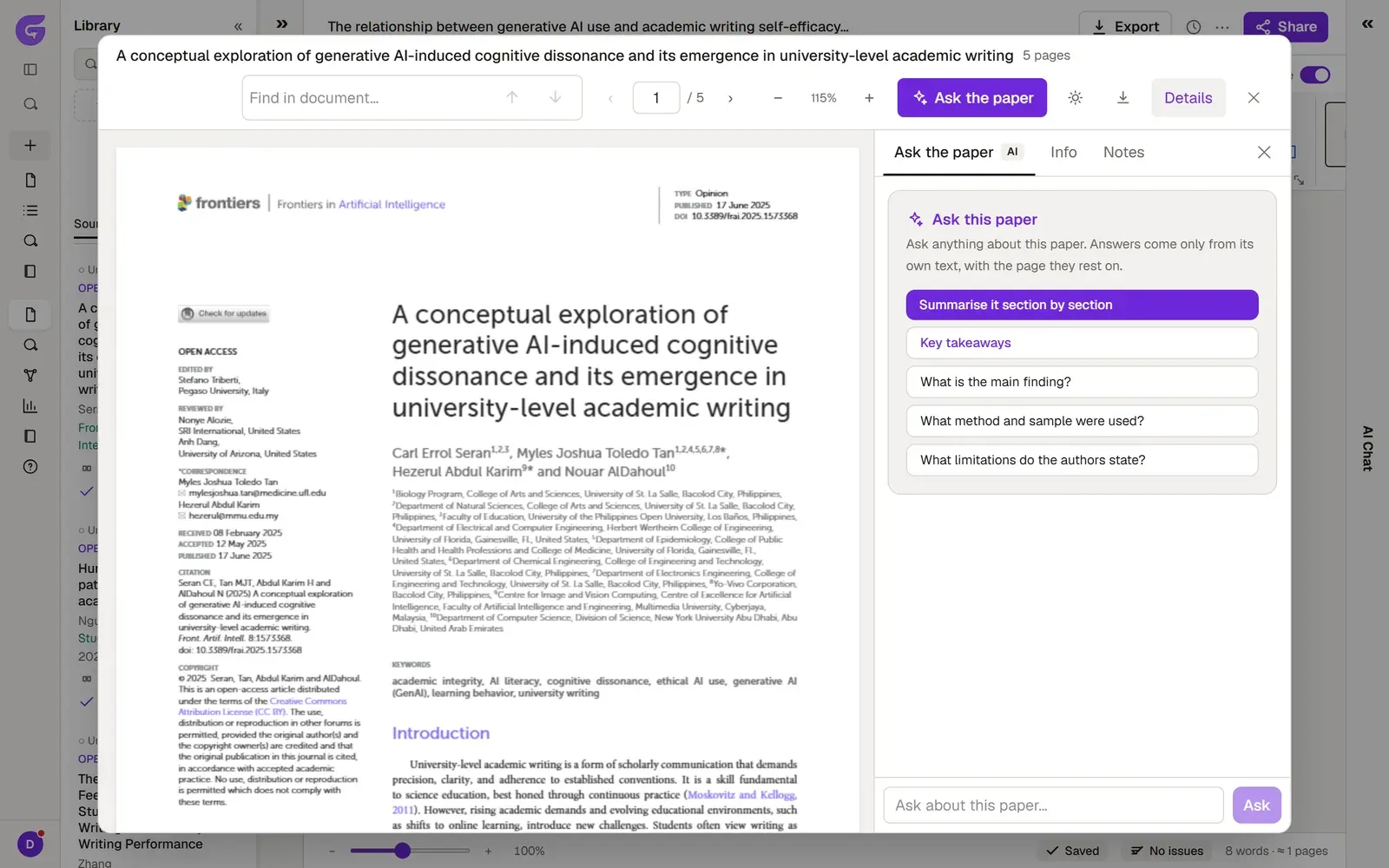
The top bar
Section titled “The top bar”- Page forward and back buttons, Zoom in and Zoom out.
- The Find in document… box: type a word; Enter takes you to the next match and Shift+Enter to the previous one. It also shows how many pages the word appears on.
- Reading theme: paper, sepia or dark.
- Download PDF and Close (Esc).
Ask the paper
Section titled “Ask the paper”- Click the Ask the paper button in the top bar, or open the Ask the paper tab in the side panel.
- You can start with a ready-made task: Summarise it section by section or Key takeaways. You can also click one of the suggested questions: What is the main finding?, What method and sample were used?, What limitations do the authors state? The question you click goes into the box.
- Type your own question into the Ask about this paper… box and click Ask.
- Every point in the answer carries the number of the page it rests on. Open that page and check it yourself.
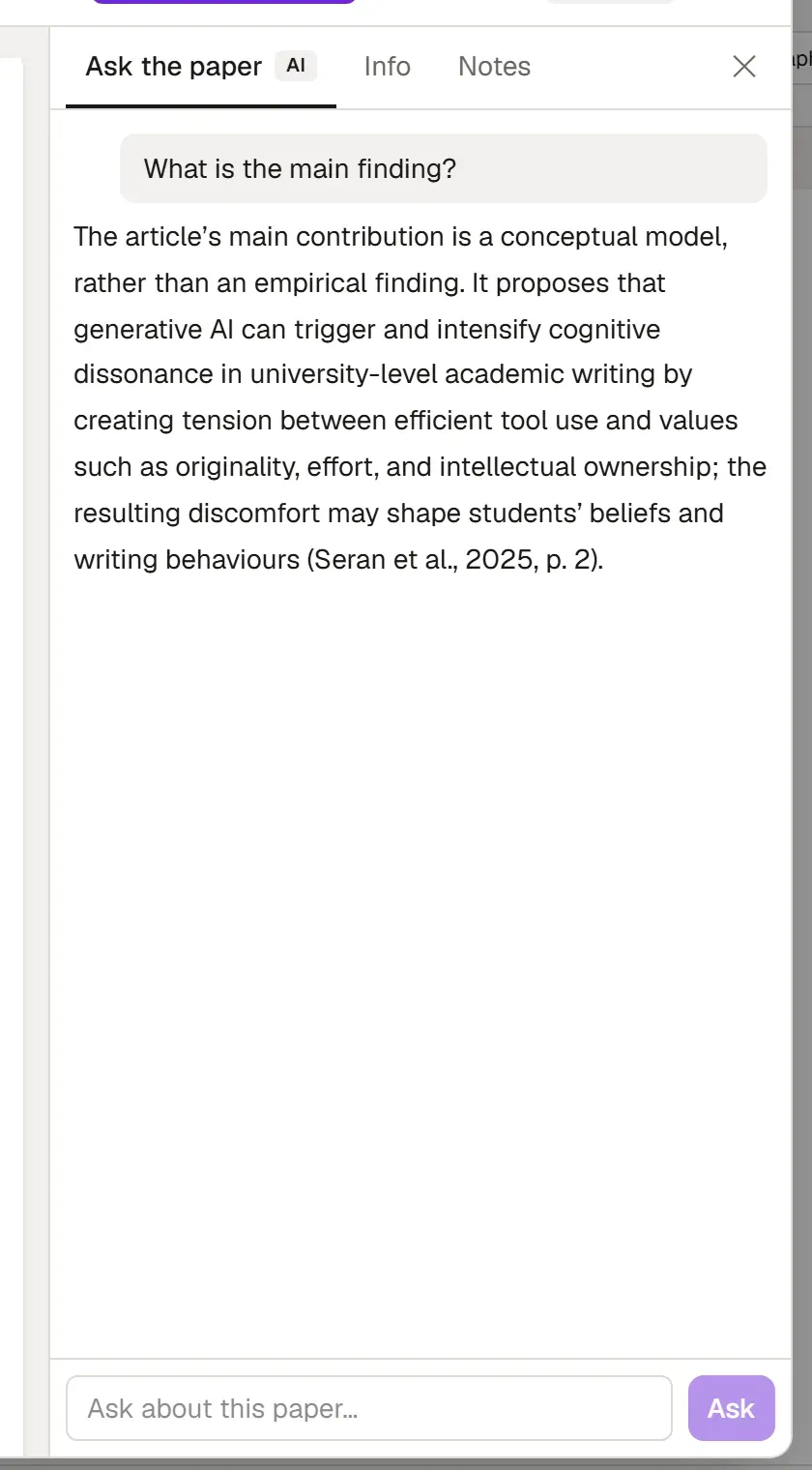
Grongy answers only from this paper’s own text; if the paper says nothing on a point, the answer says so. Key takeaways are saved with the paper and also appear on the Info tab.
The Info tab
Section titled “The Info tab”This is where you correct the paper’s reference details: type, title, authors, year, volume, issue, pages, abstract and other fields that depend on the kind of source. After making changes, click Save. Grongy builds citations and the bibliography from these fields. Automatic recognition sometimes gets things wrong, so look the fields over once.
Keep data, appendix or slide files that belong with the paper in the Supplementary files section, using Add file.
Highlights and notes
Section titled “Highlights and notes”- Select some text in the PDF with your mouse.
- A small bar opens. To highlight, click one of the colors next to Highlight; to just copy the text, use Copy.
- Open the Notes tab in the side panel. Your highlights are listed here with their page numbers; click one to jump to that page. You can also add a short note to each highlight.
- Write your general reading notes on the paper in the box at the top.
If you opened the reader from the Write tab, the selection bar also shows Quote. The text you selected goes into your document as a block quote, with the source’s citation. Then tie the quote into your text with sentences of your own.
Frequently asked questions
Section titled “Frequently asked questions”Can I see all my highlights in one place? Yes. The Notebook tab on the My Library page gathers your highlights and notes from every paper.
Can I trust the Ask the paper answer? The answer rests on the paper’s text and shows its page, but Grongy can misread the text. Read that page yourself before you put a point into your thesis.